
Open the Analytics tab
In WordPress, open WooCommerce → seeonwall.com, then the Analytics tab.
Check your consent banner
The plugin counts a shopper only after they agree to statistics in your consent banner. It reads that choice through the WP Consent API, so your consent banner must support that API. Without it, nothing is counted.
To find out if your consent banner supports it, look for WP Consent API in the description or the settings of your consent plugin.
Turn it on
Select Count add-to-cart, orders and refunds. The setting saves at once. From then on, each add-to-cart, order and refund of a poster that shows the button is counted.
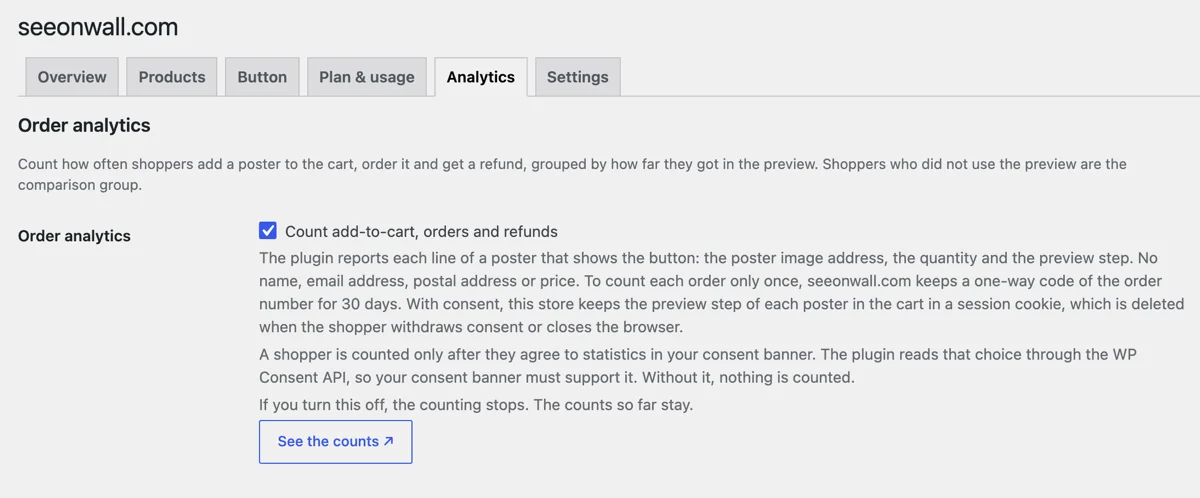
The Analytics tab with order analytics on. See the counts opens the counts in the dashboard. Update your privacy policy
While order analytics is on, the plugin adds a paragraph about it to the privacy policy guide of WordPress, under Settings → Privacy. Copy it into your privacy policy.
Read the counts
Click See the counts. The analytics page of the seeonwall.com dashboard opens. Under Add to cart and orders, choose the Period. Each row is a group of shoppers, and Ordered per add to cart is the column to compare between the rows.
Shoppers who use the preview can be more ready to buy before they use it. A difference between the rows is thus not only the effect of the preview.
The groups and the columns
- Saw this poster on their wall
- The shopper placed this poster on their wall in the preview.
- Set up a wall, saw other posters
- The shopper set up a wall in the preview, but did not see this poster on it.
- Started a preview, no wall yet
- The shopper opened the preview, but did not set up a wall.
- Did not use the preview
- The shopper did not open the preview. This is the comparison group.
- Ordered per add to cart
- Ordered as a share of Added to cart, in the same group.
- Refunded per ordered
- Refunded as a share of Ordered, in the same group.
When the counts look wrong
- All the counts stay at 0.Make sure that your consent banner supports the WP Consent API, and that you agree to statistics when you test an order yourself. Orders from before you turned it on are not counted.
- The counts are lower than your sales.Only shoppers who agree to statistics are counted, and only posters that show the button. The counts are not your total sales.
- You want to stop the counting.Clear Count add-to-cart, orders and refunds on the Analytics tab. The counting stops. The counts so far stay in the dashboard.
- You want to see how shoppers use the preview itself.Read your analytics: previews, the funnel and your top posters. →
Need help?
Tell us which product and which step, and we will help. Email support@seeonwall.com.