
Open Analytics
Log in to the seeonwall.com dashboard and open Analytics. Under Period, choose Last 7 days, Last 30 days or All time. From a WooCommerce store, you get to the dashboard with Open dashboard on the Settings tab of the plugin.
Daily data is kept for 30 days. With All time, the cards and the funnel count everything, and the charts show the last 30 days.
Read the totals
The cards at the top count Previews started, Poster placed, Completion rate and Poster views in the period. With Last 7 days, each card also shows the change against the 7 days before. The dashboard also counts Fast wall previews.
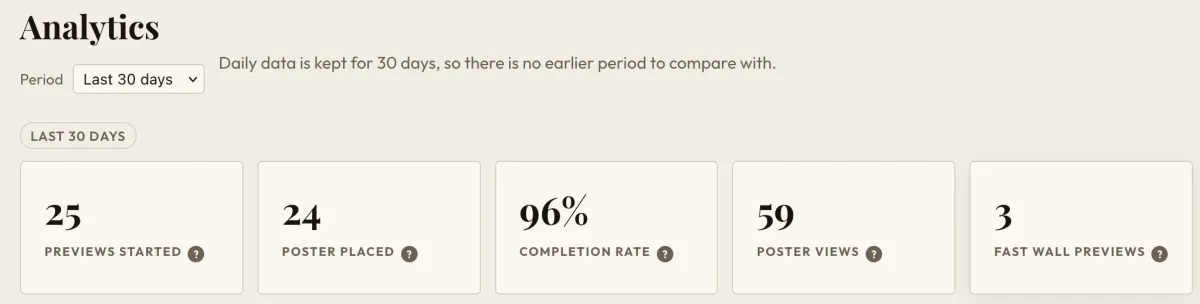
The totals for the last 30 days, with Fast wall previews as the fifth card. Read the conversion funnel
Conversion funnel shows how many previews reach each step: the shopper opened the preview, added a wall from a photo or a room scene, confirmed the corners and the size of the wall, and placed a poster. The drop-off between two steps shows where shoppers stop.
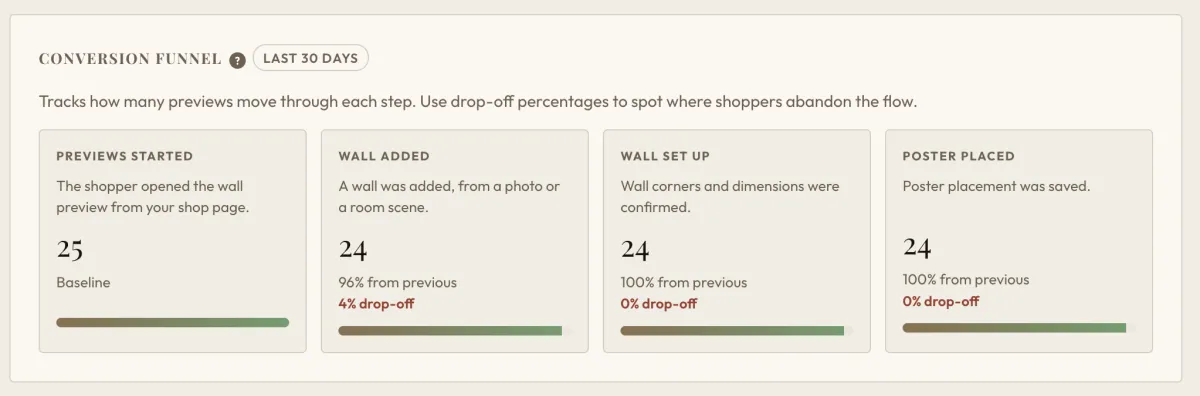
The Conversion funnel. Each step shows its share of the step before and the drop-off. Look at single days
The charts show previews, walls, preview images, shares, poster views and fast wall previews per day. Click a bar, or choose a date, to see that day hour by hour.
Hours are in UTC. A fast wall preview counts on the day its session started, so it can show on an earlier day than it happened.
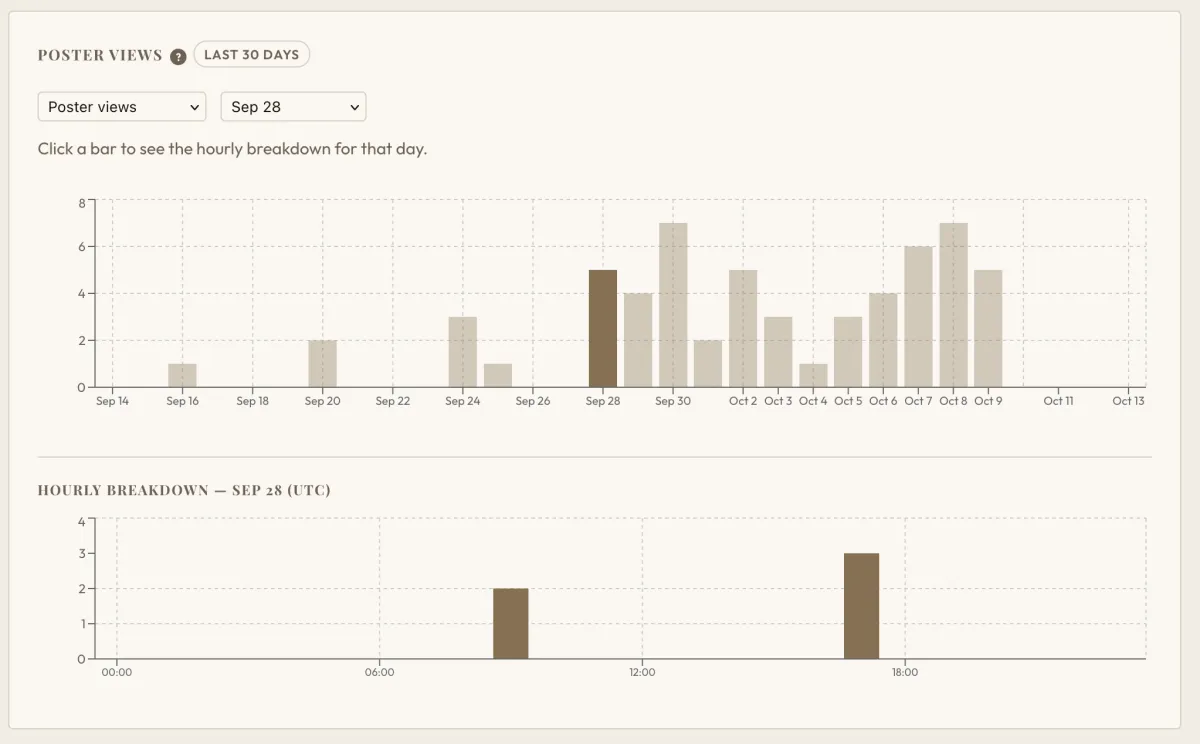
Poster views per day. Sep 28 is selected, so the hourly breakdown of that day shows below. Find your top posters
Top posters lists the 100 most previewed posters of the last 30 days. Opened counts the sessions that opened the preview with the poster. On a wall counts the sessions that showed it on a wall. To the shop counts the shoppers who then followed the link to the page that sells it. Fast preview counts the sessions that showed the poster from a product listing.
Each poster counts once per shopper session, also when the shopper looks at it many times.
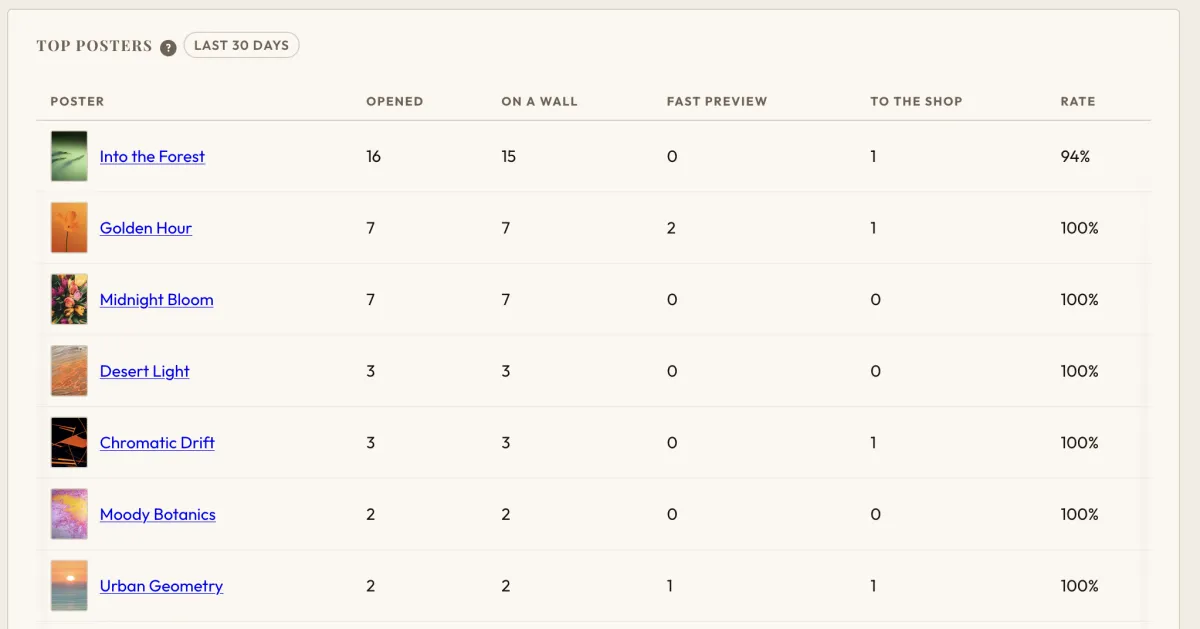
Top posters, with the Opened, On a wall, Fast preview and To the shop columns. Check the limit history
Limit history shows, for each usage type, the last time your shop went over the hourly limit of your plan, and the usage at that moment. Never means that it has not happened.
What each number means
- Previews started
- How many times shoppers opened the wall preview. A shopper who scans the QR code with their phone starts a new preview.
- Wall added
- Previews where the shopper added a wall: a photo of their own wall, or a room scene.
- Wall set up
- Previews where the corners and the size of the wall were confirmed.
- Poster placed
- Previews where the shopper placed a poster on the wall. The preview was used from start to end.
- Completion rate
- Poster placed as a share of Previews started. 80% means that 8 of 10 previews ended with a poster on the wall.
- Poster views
- One shopper seeing one poster on their wall on one day. The same poster on the phone and on your site counts once, and a second poster counts again. Poster views count toward the monthly allowance of your plan.
- Fast wall previews
- One shopper seeing one poster on their wall from a product listing, without opening the product page.
- Photo uploads and Room scenes
- Where the walls came from: a photo that the shopper sent, or a room scene that they picked. The Walls chart shows both.
- Preview images
- Sessions that made a preview image. A shopper makes one when they download or share their wall preview.
- Shares
- Sessions that created a share link to their wall preview.
- Opened (Top posters)
- Sessions that opened the preview with this poster.
- On a wall (Top posters)
- Sessions that showed this poster on a wall or in a room scene.
- Fast preview (Top posters)
- Sessions that showed this poster from a product listing.
- To the shop (Top posters)
- Shoppers who then followed the link from the preview to the page that sells this poster. The column shows only when it has numbers.
- Rate (Top posters)
- On a wall as a share of Opened: how many of the opened previews showed this poster on a wall.
- Limit history
- For each usage type: the last time your shop went over the hourly limit of your plan, the usage at that moment, and the limit itself. Never means that it has not happened.
What the numbers can tell you
- Many previews start, but few posters are placed.In the Conversion funnel, find the step with the largest drop-off. That is where most shoppers stop.
- Limit history shows a recent date.At that time, shoppers reached an hourly limit of your plan. The Dashboard page of the seeonwall.com dashboard shows your usage now. A WooCommerce store also shows it under Current usage on the Settings tab of the plugin.
Need help?
Tell us which product and which step, and we will help. Email support@seeonwall.com.