
Open the setting
In the app, open Products, then the Posters tab. Find Where the button appears.
Choose the products
Under Show the button on, choose Every product with a size, Selected collections or tags, or Only products I turn on. With Selected collections or tags, the button shows only on products in the collections that you select, or with one of the tags that you enter. With Only products I turn on, no product shows the button until you turn it on.
For Selected collections or tags, select at least one collection or enter a tag, or no product shows the button. Separate tags with commas.
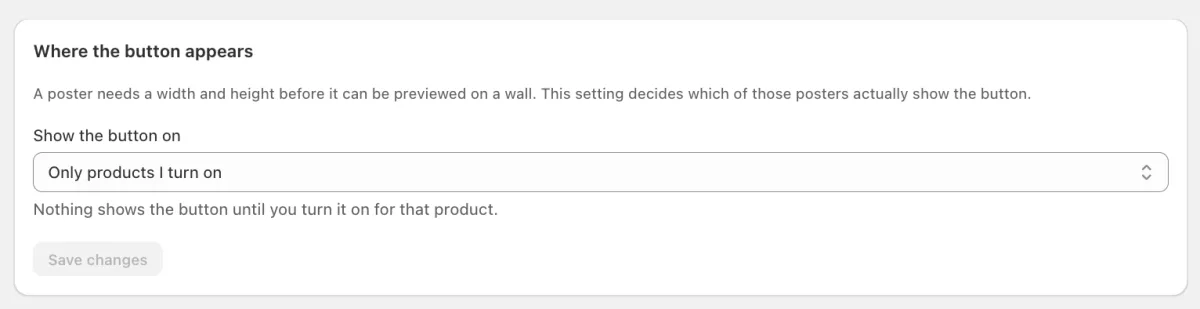
Where the button appears, set to Only products I turn on. Save
Click Save changes. The setting applies to the whole shop at once.
Find a single product
Below the setting, the Posters tab lists your products. Each one shows its status, with Turn on or Turn off beside it. The situations below say which to use.
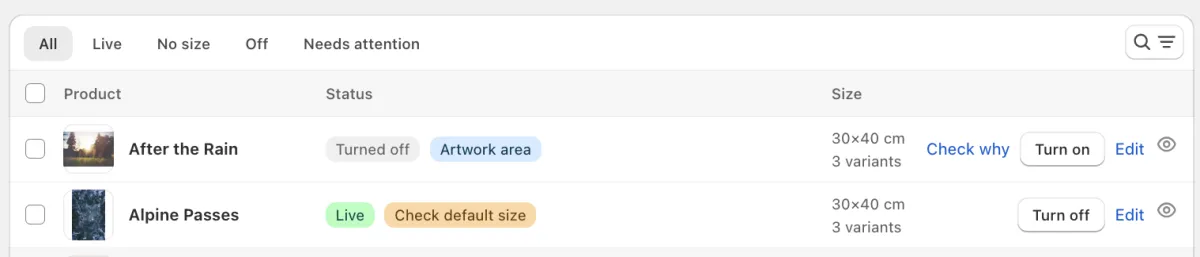
After the Rain is switched off on its own, so it shows Turn on. Alpine Passes is live, so it shows Turn off. Select many products
To switch many products at once, select them in the list. Turn on selected and Turn off selected then show above the list. Products with no size are skipped.
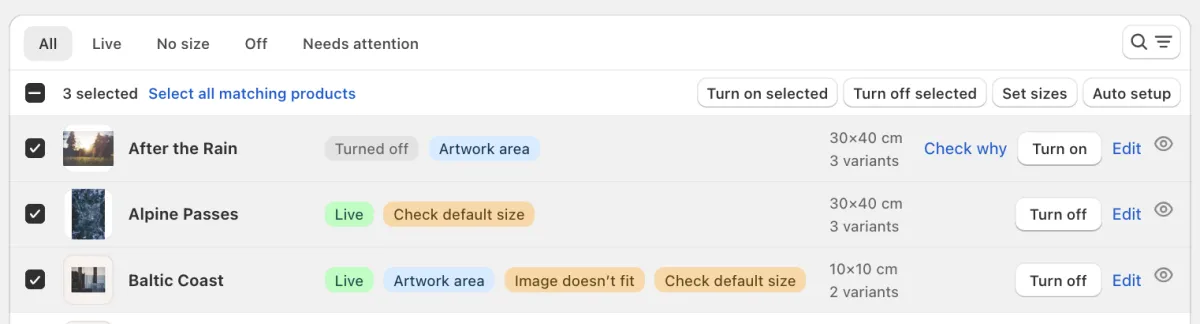
Three products are selected. One click switches them all.
Switch single products on or off
- One product must never show the button.On the Posters tab, click Turn off for the product. Or click Edit and set Wall preview for this product to Never show.
- One product must show the button, whatever the setting.On the Posters tab, click Turn on for the product. Or click Edit and set Wall preview for this product to Always show. The product still needs a size.
- Many products must be switched on or off.On the Posters tab, select the products and click Turn on selected or Turn off selected. Products with no size are skipped.
- A product must follow the shop setting again.Click Edit and set Wall preview for this product to Follow the shop setting.
- One product has no button, and you do not know why.Why isn't the button showing? →
Need help?
Tell us which product and which step, and we will help. Email support@seeonwall.com.