
Check the product
In the app, open Storefront. Under Why isn't my button showing?, type the product title and click Check. On the Posters tab, you can also click Check why on a product with no size.

The button check on the Storefront tab. Type a product title, then click Check. Read the result
The result says Button shows or Button hidden. For a hidden button, it names the first check that fails. The checks are: the app embed, the button block, the poster width and height, and the activation.
Sizes per variant is checked too. When only some variants have a size, the others use the Poster size, so shoppers can see the wrong size for them.
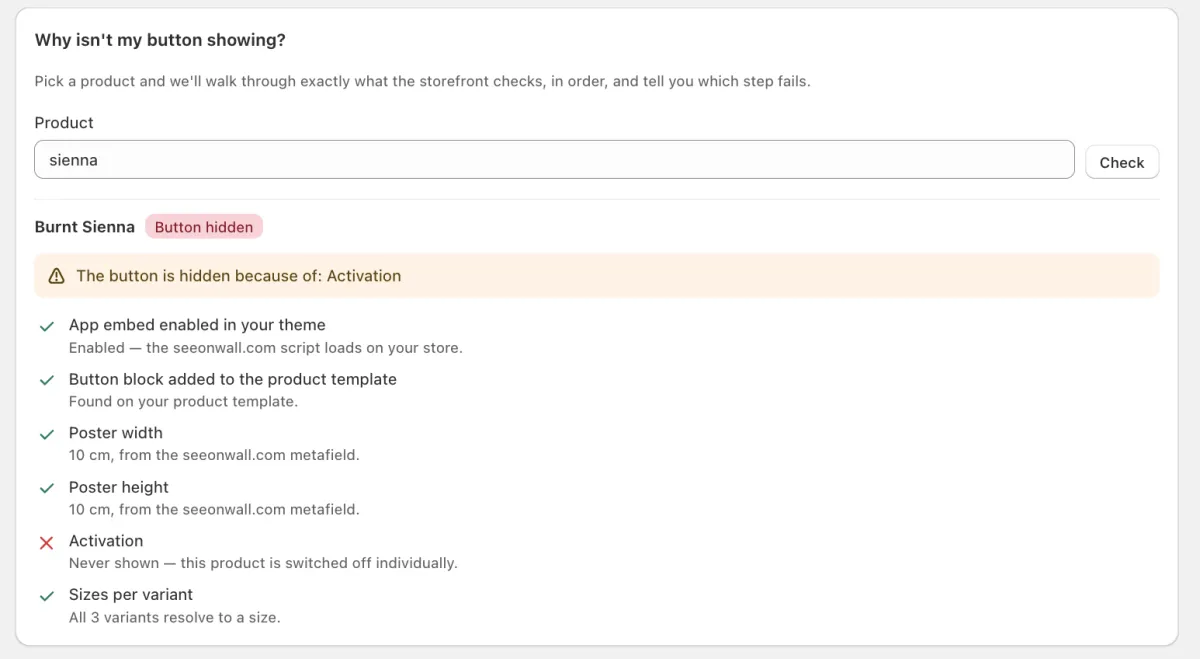
The result for one product. The checks before Activation pass, and Activation fails: the product is switched off.
The failed check and its fix
- App embed enabled in your theme: Not enabled.On the Storefront tab, use Turn on seeonwall.com in your theme. In the theme editor, enable the embed under App embeds, then click Save.
- Button block added to the product template: Not found.On the Storefront tab, use Add the button to your product page. Add the seeonwall.com block to the main product section of a product template, then save.
- Poster width or Poster height: Not set.Give the product a size →
- Activation: the product is not in the collections and has none of the tags that your shop targets.On the Products page, under Where the button appears, add a collection or a tag that the product has, and click Save changes. Or switch the product on: click Edit and set Wall preview for this product to Always show.
- Activation: your shop shows the button only on products that you turn on.On the Posters tab, click Turn on for the product. For many products, select them and click Turn on selected.
- Activation: Never shown — this product is switched off individually.Click Edit on the product and set Wall preview for this product to Follow the shop setting or Always show.
- Every check passes, but the button is not on the product page. For example, your store moved to another domain.Check the allowed domains →
Need help?
Tell us which product and which step, and we will help. Email support@seeonwall.com.