
This is what your buyers would see
Open this on your phone. It's a real preview link for a real poster — take a photo of a wall and the poster appears on it at its true size. No app, no signup, nothing to install.
https://seeonwall.com/p/a838654a41What a preview link actually is
It's a permanent seeonwall.com URL that stands in for the embedded button you'd use on your own website. One link holds one poster and its real-world dimensions. When a shopper opens it, they photograph their wall, and your poster is placed on it at true physical scale — so they can see whether your 40×60 cm print is the right size for that space above the sofa. You create links from your seeonwall.com dashboard; your plan sets how many can be active at once.
Open Preview Links in your dashboard
Everything happens in your seeonwall.com account — you never touch your marketplace listing until the last step.
- Log in at seeonwall.com and look at the left-hand menu.
- Click “Preview Links”.
- The bar at the top shows how many active links your plan allows. The free plan includes 10, which is enough to try this on your best-selling listings before committing to anything.
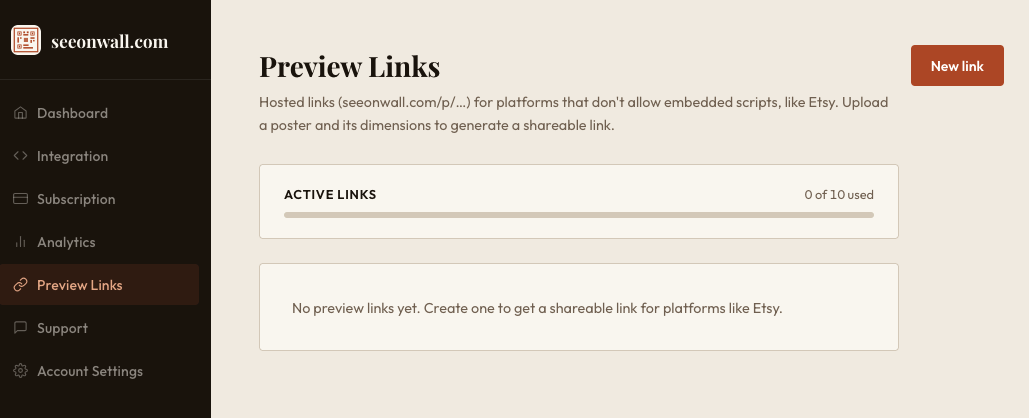
The Preview Links page, before you've created anything. Create a link for one poster
Click “New link”. The form is short, and only the image and at least one size are required.
- Poster image — either upload the file, or click “Paste URL” and give us the address of an image you already host. If your listing photos are online somewhere, pasting the URL saves you a download.
- Unit — cm or inches, the unit you list this poster in. Use the real printed size, not the image's pixel dimensions: these are the numbers that make the preview accurate.
- Title (optional) — shown to the shopper, and it's how you'll recognise the link in your own list later.
- Available sizes — add every size the poster is sold in, one at a time, with Width, Height and “Add”. The first size is the default. Shoppers can switch between them on their own wall, which is far more persuasive than a size chart.
- Click “Create link”.
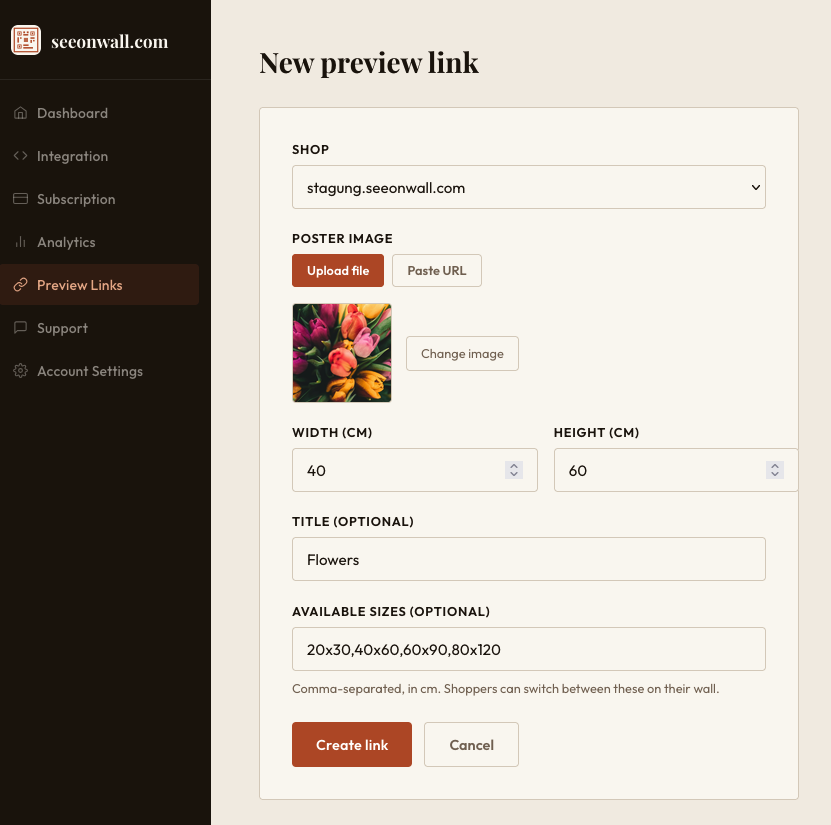
Upload or paste a URL, pick the unit, and list the real printed sizes you offer. Copy the link
Your new link appears in the list straight away and works immediately.
- Click “Copy link” to put the URL on your clipboard.
- Open it once yourself to check the poster and dimensions look right.
- “Disable” pauses a link without deleting it — useful when a listing goes out of stock, and it frees the slot back up against your plan's limit.
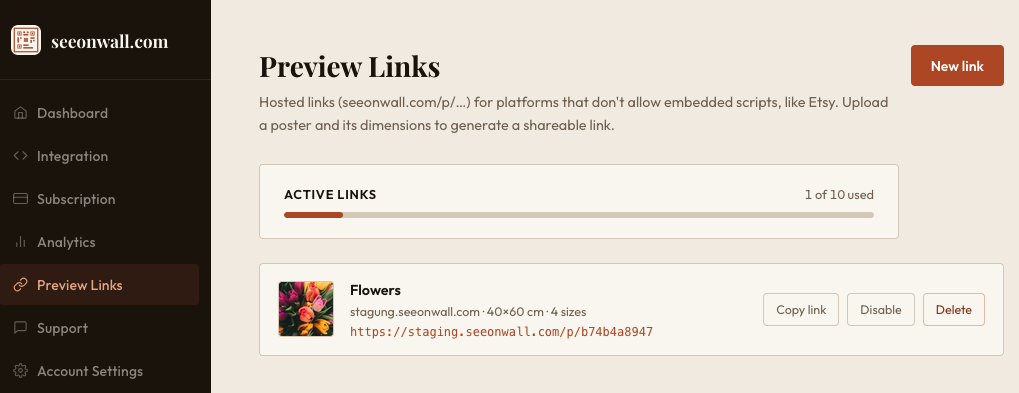
The finished link, ready to copy. “Disable” pauses it without losing the URL. Paste it into your listing description
This is the only step that happens on the marketplace — and it's just typing a line of text.
- Edit your listing and add the link near the top of the description, where it won't be cut off by the “read more” fold.
- Some marketplaces show a plain URL as text rather than as a clickable link. If yours does, tell buyers in so many words to copy and paste it — otherwise most will not realise they can.
- Think hard before putting a QR code in your listing photos. Off-platform rules name QR codes specifically on some marketplaces, and a photo is far harder to revise than a line of description text.
- Keep the wording about seeing the poster, never about buying elsewhere — the sale still happens on the marketplace, and that's what keeps you on the right side of the rules.
Wording you can copy 📐 See this print on your own wall before you buy Copy and paste this link into your browser: seeonwall.com/p/your-code Take a photo of your wall and this print appears on it at its actual size, so you can check it fits before ordering. Works on your phone, nothing to install.
Before you paste: check your marketplace's rules
Policies on outside links differ sharply between marketplaces and they change without notice. Whether a preview link belongs in your listing is a judgement about your platform and your shop, and it is yours to make — your account is what carries the outcome. These are the four questions worth answering against your marketplace's current terms.
- Are outside links allowed in listing text at all? Some marketplaces permit them, some allow only a short list of approved destinations, and some forbid them outright.
- Does a non-clickable URL still count as a link? Several policies say in as many words that plain text counts, so "it is not clickable" is not a safe assumption to build on.
- Do the off-platform rules cover pointing off-site, or only selling off-site? Look for wording about encouraging or facilitating a transaction elsewhere, and check whether QR codes are named separately.
- What does the destination actually do? A page that only shows an item sits differently against fee-avoidance rules than one that also sells it, and that distinction is usually where those rules turn.
This one is your call
We build the preview link. What you do with it on a marketplace is your decision and your responsibility, and we are not in a position to make it for you: only that platform's current terms decide what is permitted there, and only you know how you sell. If you are unsure, ask the marketplace directly — or leave the link out of your listings and use it where you control the page, which is where the embedded button works best anyway.
None of this is legal advice, and we do not track marketplace policies on your behalf. Read your platform's current terms before you publish anything — your account is your responsibility.
Need a hand?
Not sure whether this fits your shop? Email us at support@seeonwall.com.