
Open Bulk actions
In WordPress, open WooCommerce → seeonwall.com, then the Products tab, and click Bulk actions.
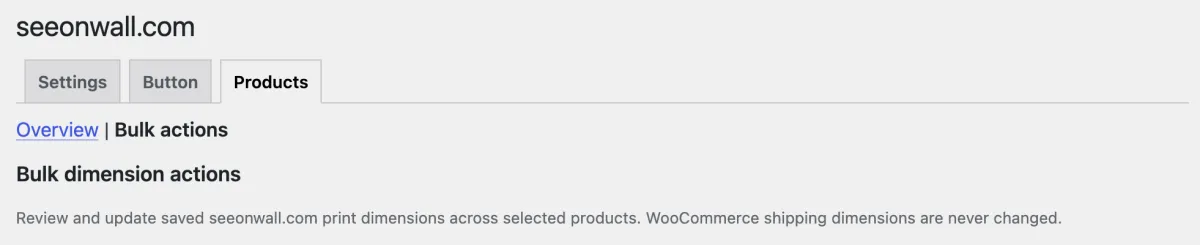
The Bulk actions view of the Products tab. Select the products
Under 1. Select products, find the products with the search and the filters, and select them. One change takes up to 100 products.
To find products by size, choose an option under Saved dimensions, enter the size in Size to match and click Apply filter. It takes the same spellings as the size fields, so a4 also finds 21x29.7.
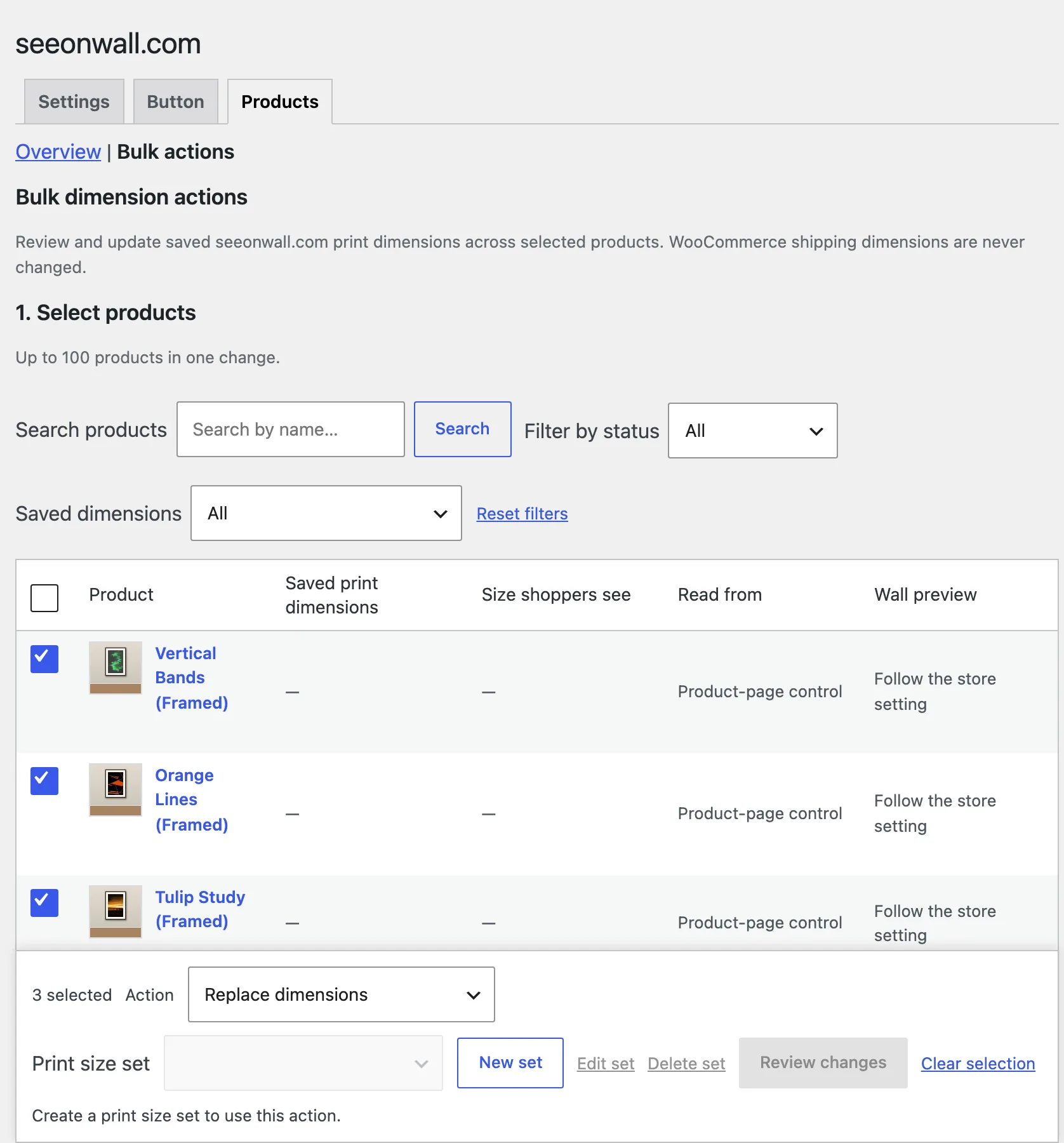
Three products are selected. They have no saved print dimensions yet. Choose the change
Under 2. Choose the change, choose an action. Add the sizes in the set adds the sizes to the list of each product. Replace dimensions replaces the list with the set. Remove all saved dimensions clears the list. For Add and Replace, choose the set under Print size set.

Replace dimensions with the size set My sizes, for the three selected products. Make a size set
When you have no set yet, click New set next to Print size set. Enter a name and the sizes, one per row, and click Save changes.
To make a set from the sizes of a product, move the pointer over its row and click Create a size set from this product.
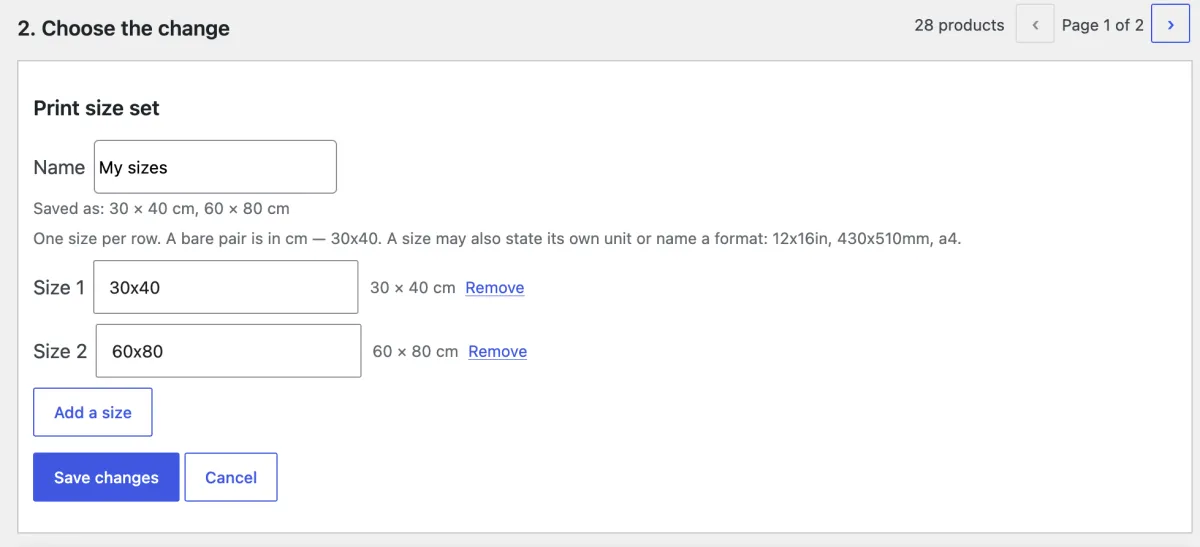
A size set with two sizes. Saved as shows how the plugin reads them. Check and apply
Click Review changes. The list shows what changes on each product. Then click Apply changes.
For Replace dimensions and Remove all saved dimensions, the browser asks you to confirm. These actions change only the seeonwall.com list. A list replaces the sizes of the variations for the preview.
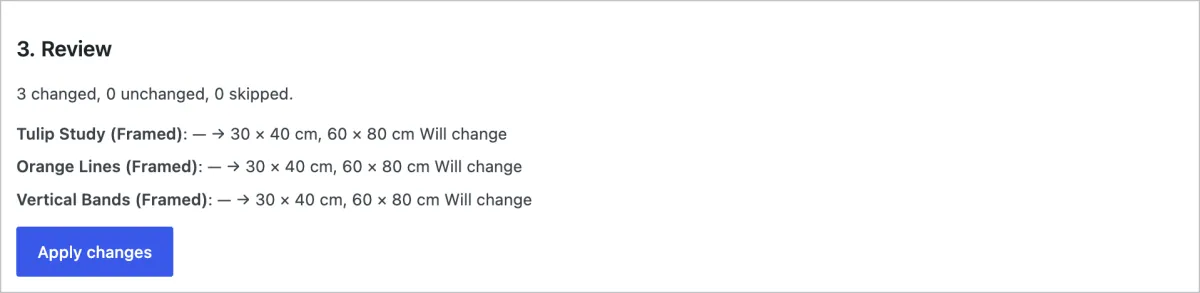
All three products will change. Apply changes saves the new sizes.
Need help?
Tell us which product and which step, and we will help. Email support@seeonwall.com.