
Open the print sizes window
In WordPress, open WooCommerce → seeonwall.com, then the Products tab. Find the product and click the entry in its Print size column.
You can also do this in the product editor: under Product data, open the seeonwall.com tab and find Print sizes. There, click Update to save the product.
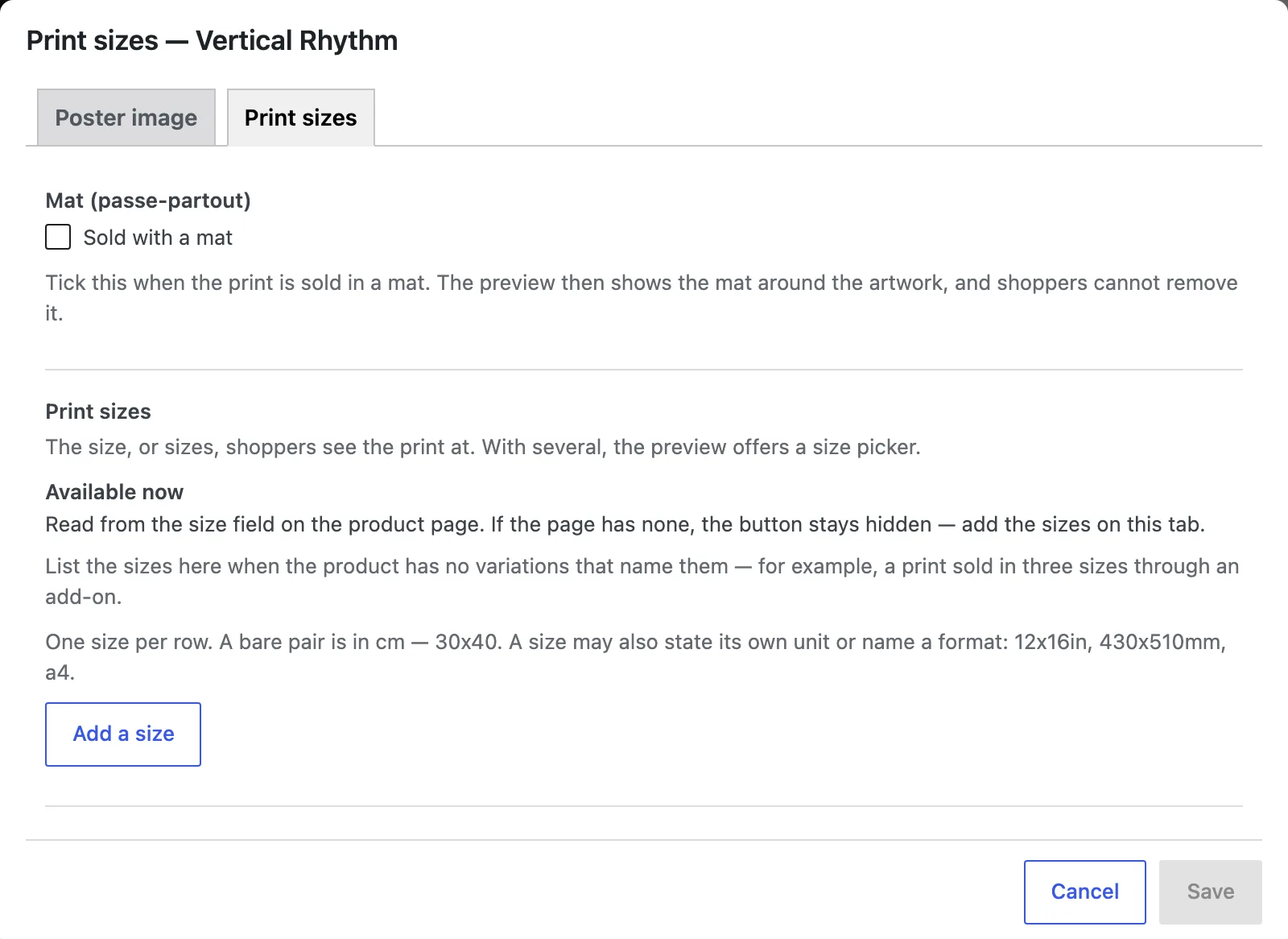
The print sizes window. The product has no list yet. Enter the sizes
Click Add a size and enter the width and height, for example 30x40. A size with no unit is in the dimension unit of your store. A size can also give its own unit or name a paper format: 12x16in, 430x510mm, a4. For each next size, click Add another size.
Use a period for decimals: 29.7x42.
If the print is sold in a mat
When the print is sold in a mat, select Sold with a mat above the sizes. Enter the Default mat width and choose the Mat colour. The preview then shows the mat around the artwork, inside the print size, and shoppers cannot remove it. For a different mat on one size, use the Mat field beside that size.
Save and check
Click Save. The Print size column shows the new sizes. To check the product, move the pointer over its row and click Preview on a wall.
The list replaces the sizes of the variations for the preview. To use the variations again, click Clear the list.
Need help?
Tell us which product and which step, and we will help. Email support@seeonwall.com.