
Open the store settings
In WordPress, open WooCommerce → seeonwall.com. On the Settings tab, find Size field (optional).
Name the field only when necessary
Leave Size field (optional) empty. Fill it in only when the button offers the wrong sizes or none, for example when a page has two dropdowns that look like sizes. It takes a CSS selector, such as select[name="size"].
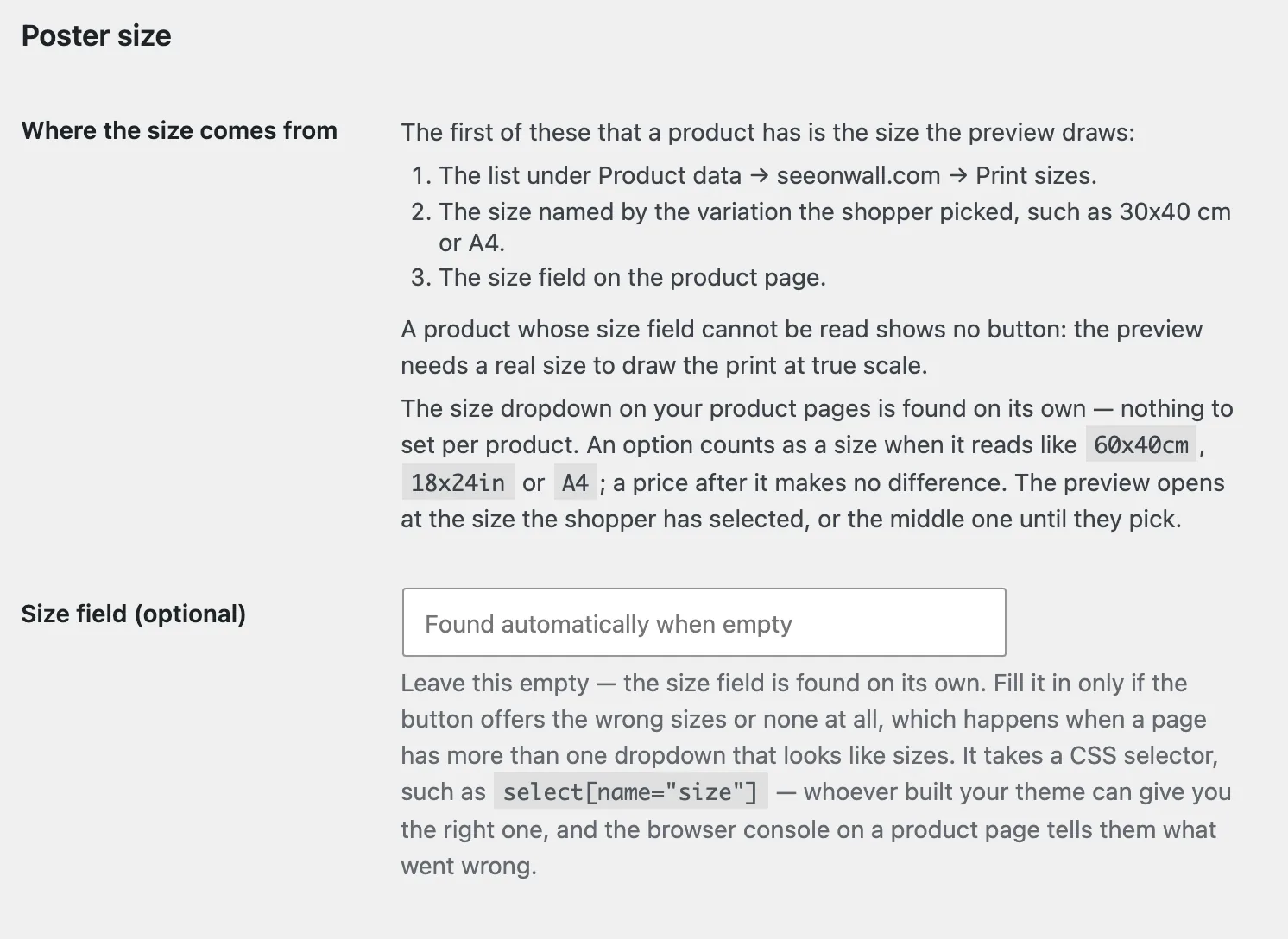
Size field (optional) is empty, so the plugin finds the field itself. Save and check
Click Save changes. Then open a product page, select a size and check that the preview opens at that size.
Need help?
Tell us which product and which step, and we will help. Email support@seeonwall.com.