
Open the poster image window
In WordPress, open WooCommerce → seeonwall.com, then the Products tab. Find the product and click its thumbnail or the entry in its Poster image column.
You can also do this in the product editor: under Product data, open the seeonwall.com tab. There, click Update to save the product.
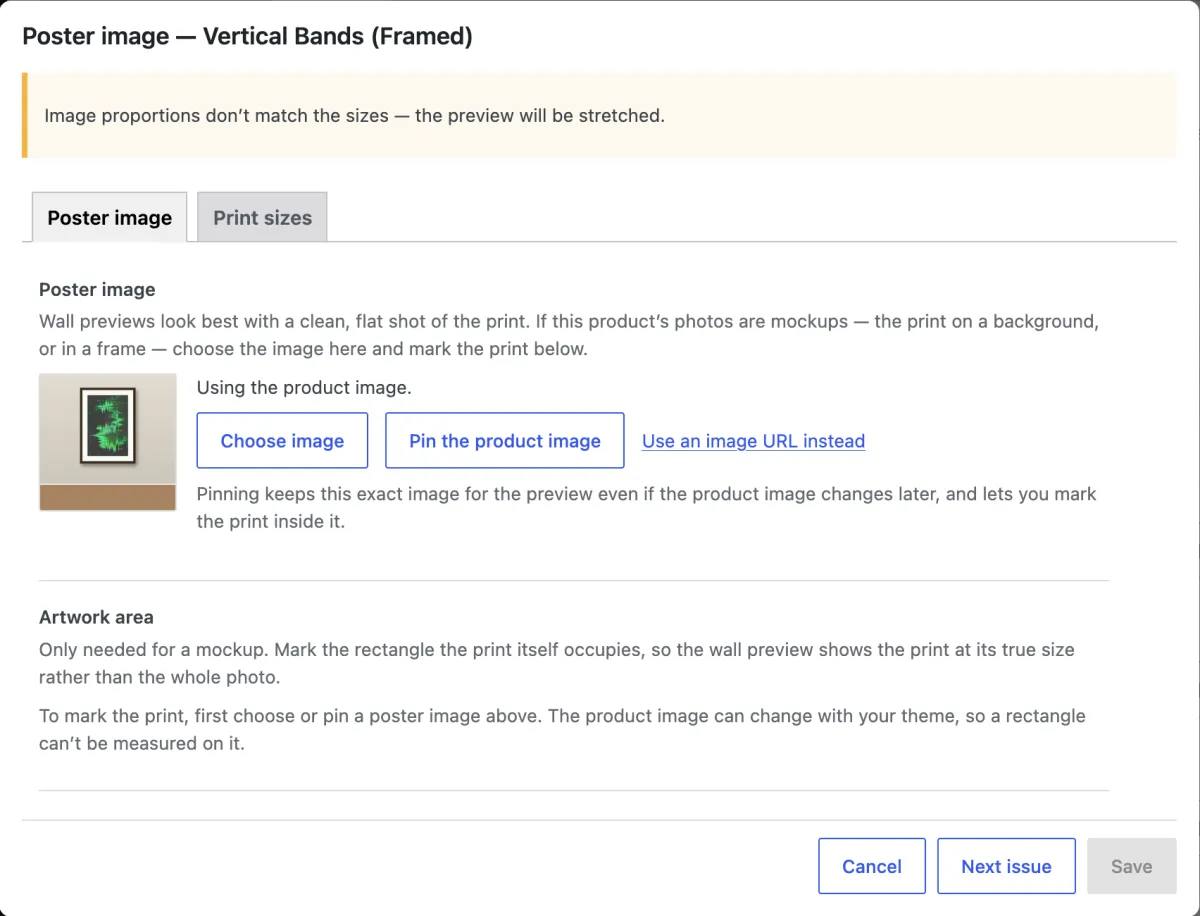
The poster image window. The product uses its product image, which is a mockup. Choose the image
To use an image from the media library, click Choose image, select the image and click Use this image. To keep the current product image, click Pin the product image.
Pin the product image when it is a mockup. You can mark the artwork area only on a chosen or pinned image, because the product image can change with your theme.
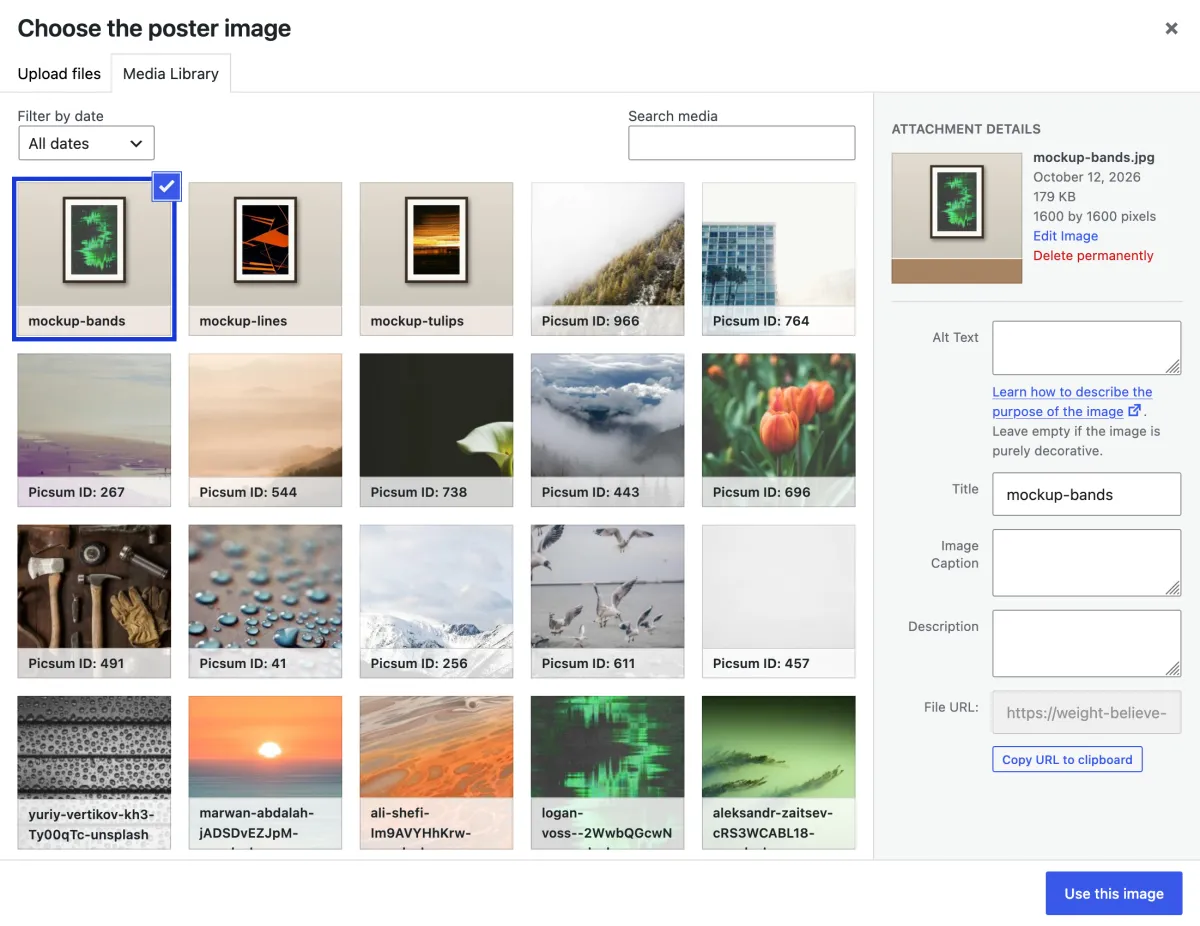
The media library. Use this image makes the selected image the poster image. Click Mark the artwork
The chosen image now shows under Poster image. Under Artwork area, click Mark the artwork.
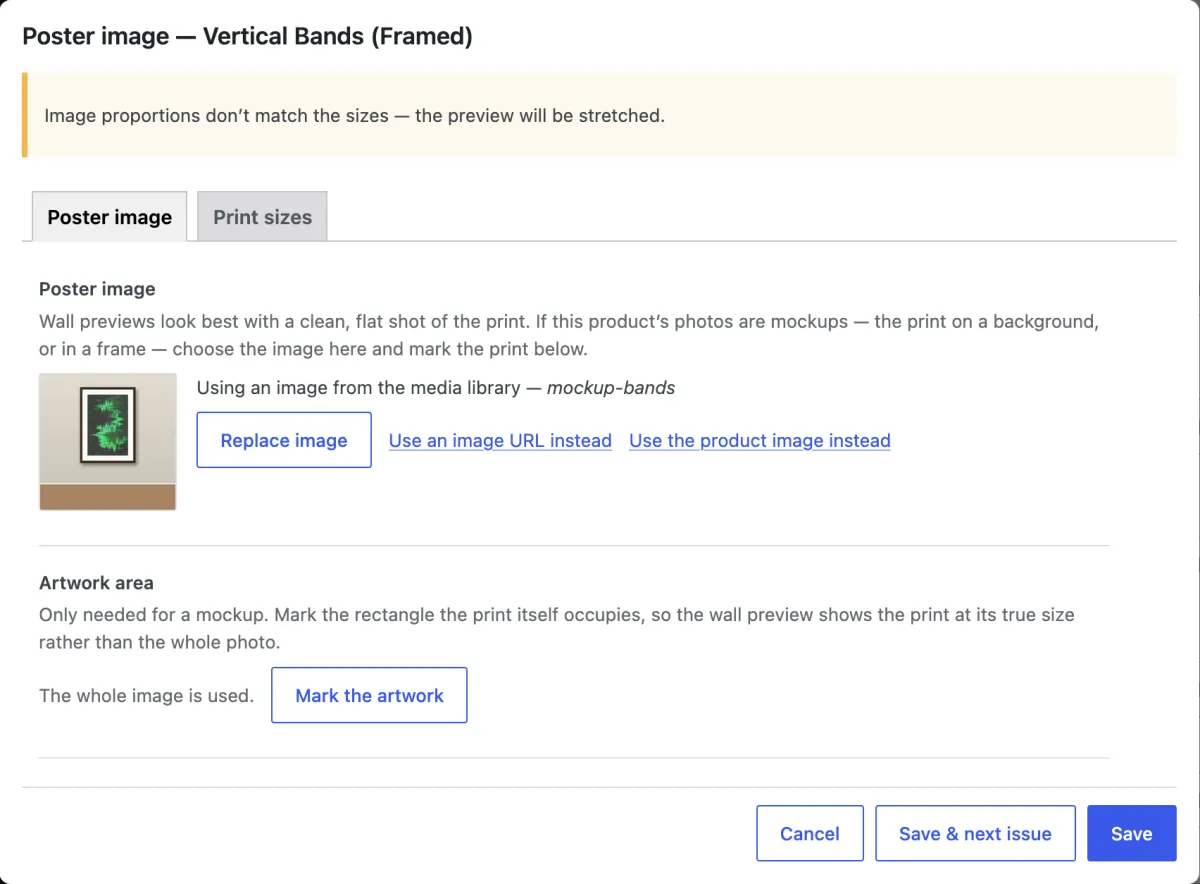
An image from the media library is chosen. Until you mark the artwork, the whole image is used. Drag the box around the print
Drag the box or its corners until it covers only the print: not the frame, the mat or the wall. When the image is the print with nothing around it, click Use the whole image.
The plugin trims a plain background to suggest a box. On a framed mockup, this usually finds the outer edge of the frame, so drag the box onto the print in the frame. When the box does not fit the print size of the product, the plugin shows a warning. Click Match the print size.
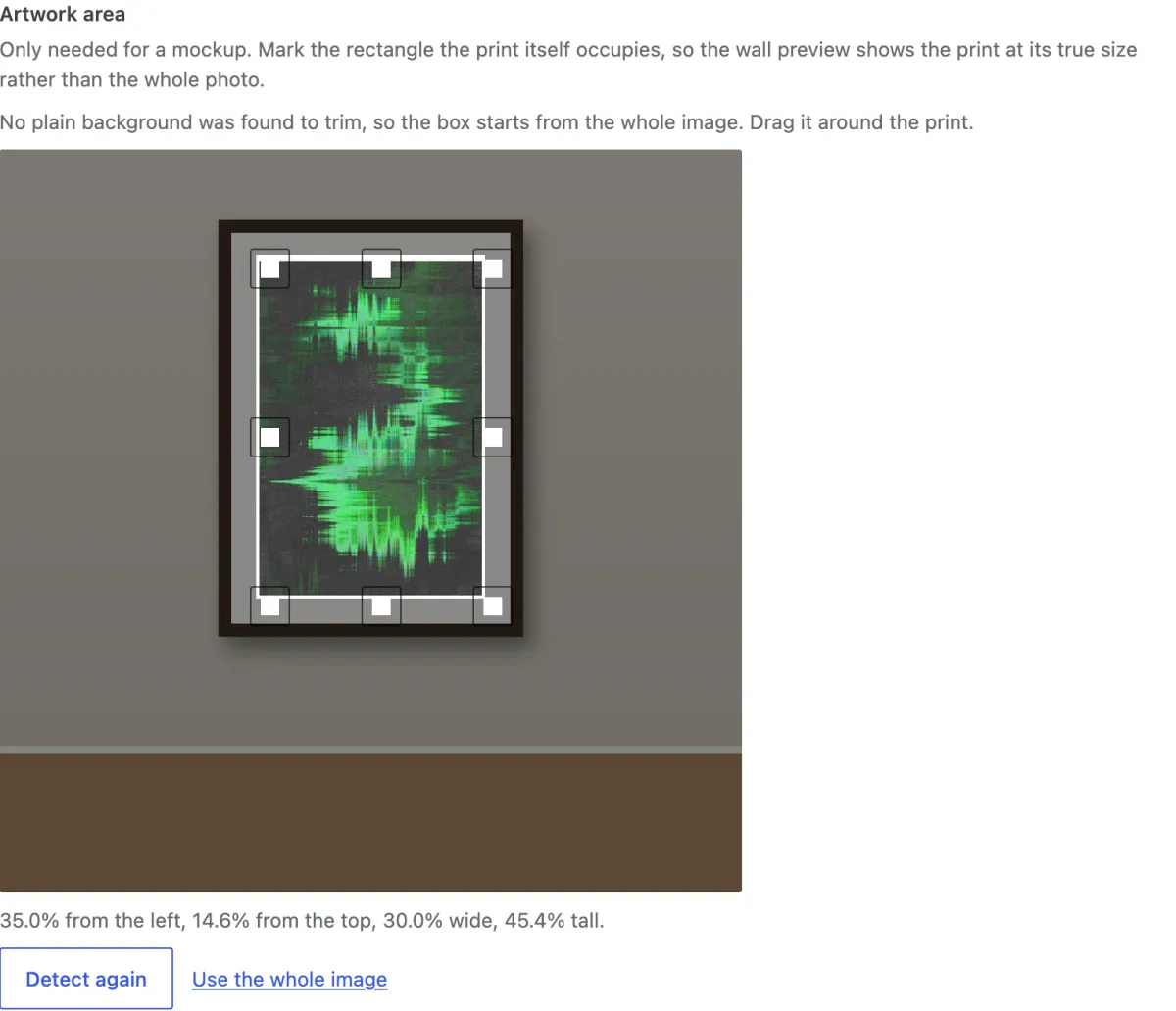
The box covers only the print, not the frame or the mat. The line under the image gives the area in percent. Save and check
Click Save. To see the product on a wall, move the pointer over its row and click Preview on a wall.
When other products use the same mockup, move the pointer over the row of this product and click Apply artwork area to the same mockup. The plugin finds those products and gives them the same artwork area.
Need help?
Tell us which product and which step, and we will help. Email support@seeonwall.com.