
Export the products
In WordPress, open Products → All Products and click Export. Under “Which columns should be exported?”, you can choose only ID, SKU, SeeOnWall image and SeeOnWall artwork area. Keep ID or SKU, because the import finds each product by them. Click Generate CSV. The file has the values that each product has now.
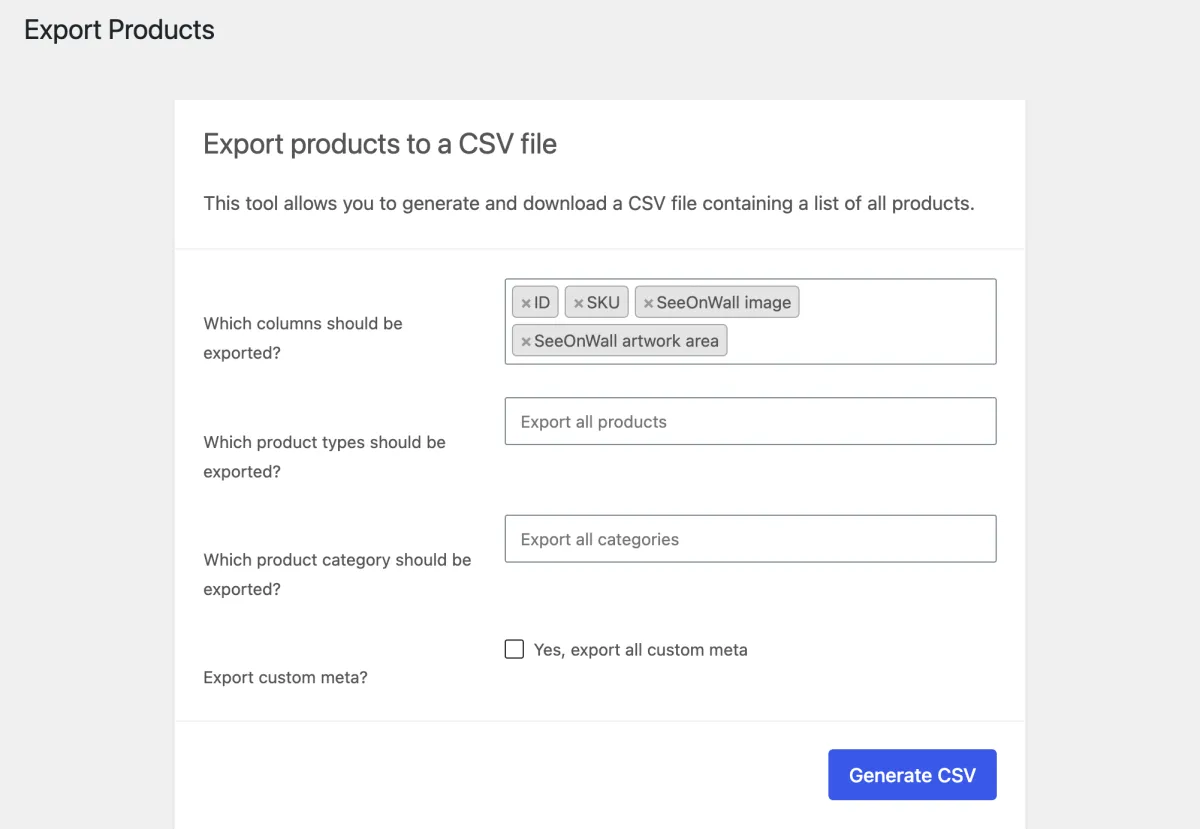
The export with only the columns that this guide needs. Fill the columns
In SeeOnWall image, enter the address of the image. The address of a file in your media library is saved as that file. Any other address is saved as an image URL. In SeeOnWall artwork area, enter four numbers with commas between them: the left, top, width and height of the print, in percent of the image. For example: 10,12.5,80,75.
Put the artwork area in the same row as its image, because a new image clears the artwork area of the old one. An empty cell clears the value, and so does an artwork area that is not four correct numbers. To copy an area, mark the artwork on one product in the plugin, export, and copy its value to the products that use the same mockup.
Import the file
Open Products → All Products and click Import. Choose the file, select Update existing products and click Continue.
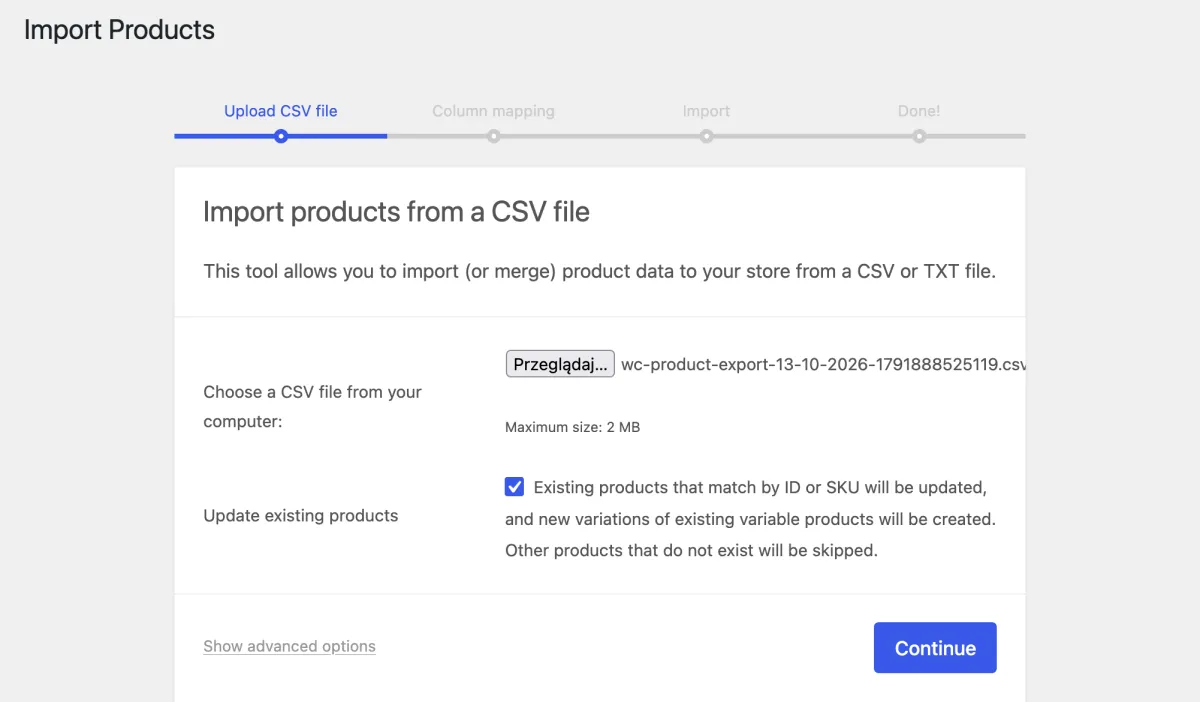
The first screen of the importer, with Update existing products selected. Check the column mapping
The SeeOnWall columns are mapped automatically. If a heading is different, choose its column under seeonwall.com in the mapping list. Then click Run the importer.
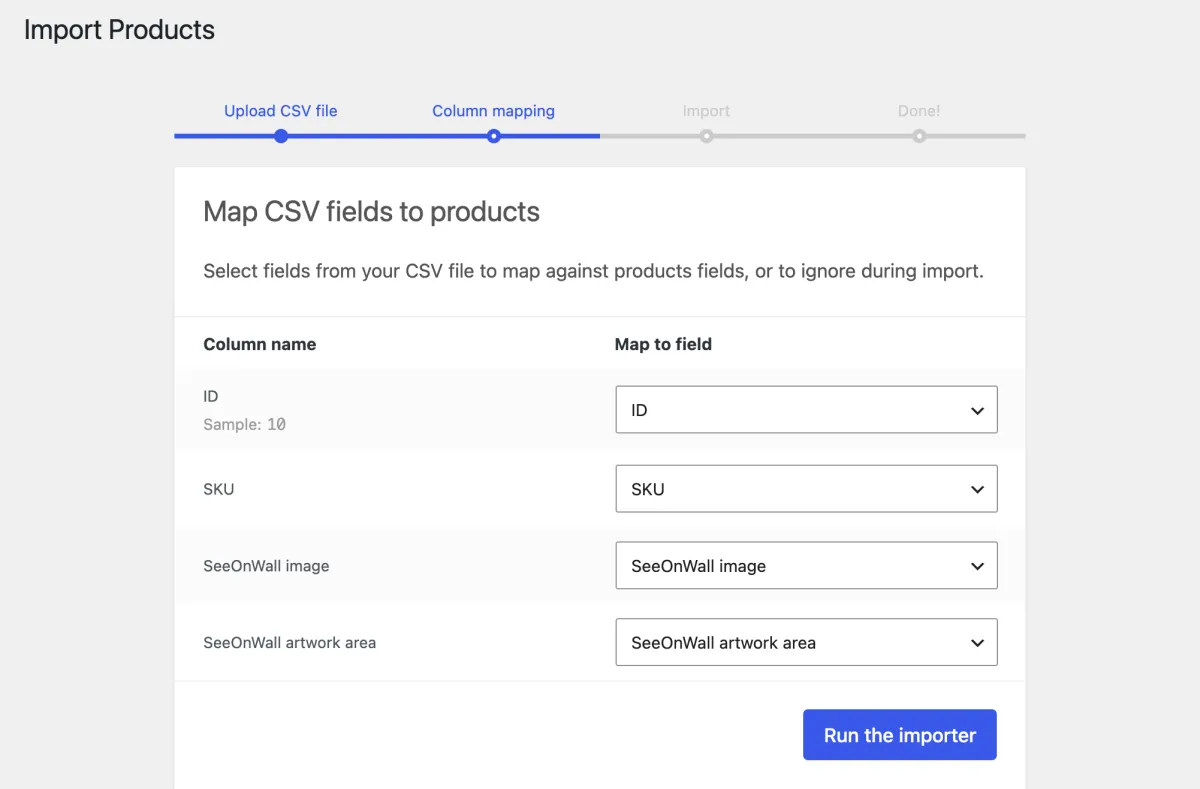
Each column of the file is mapped to the field of the same name. Check the products
WooCommerce shows how many products were updated. Open WooCommerce → seeonwall.com, then the Products tab. The Poster image column shows where the image of each product comes from. To check a product, move the pointer over its row and click Preview on a wall.
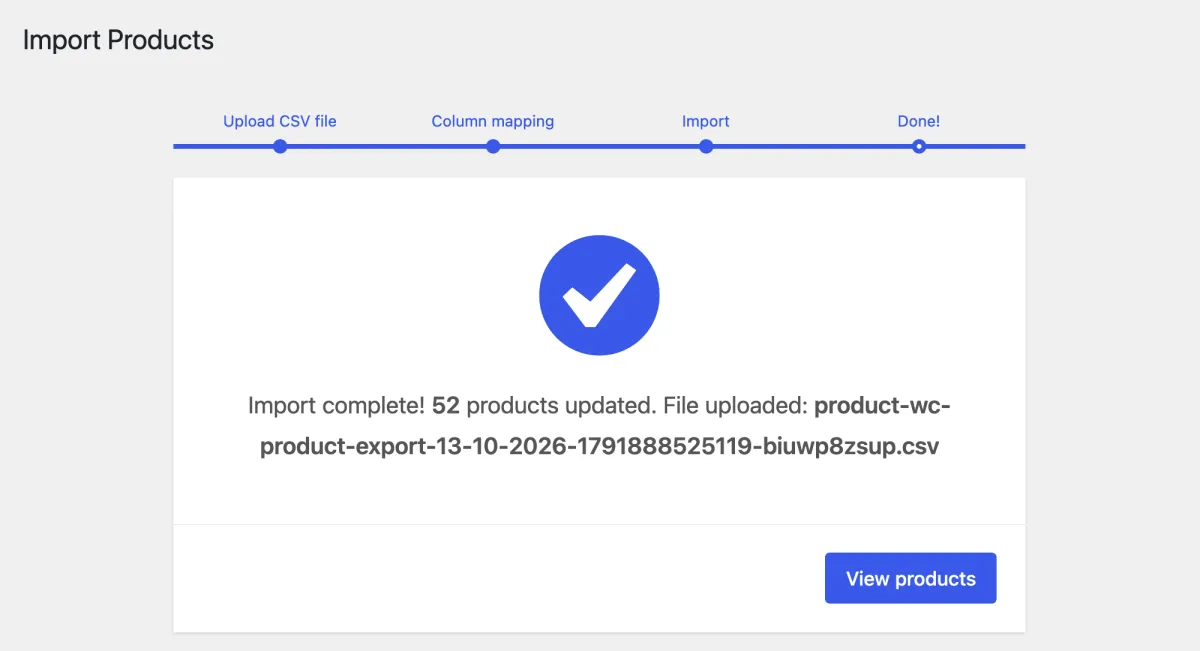
The import is complete.
Need help?
Tell us which product and which step, and we will help. Email support@seeonwall.com.