
Open the Button tab
In WordPress, open WooCommerce → seeonwall.com, then the Button tab.
Choose the position
Under Position on the product page, choose where the button goes, for example After the Add to cart button or After the price.
Every position in the list is on the standard WooCommerce product template. When your theme changes that template, some positions may not show. Then try another position, or place the button yourself with the block, the Elementor widget or the shortcode.
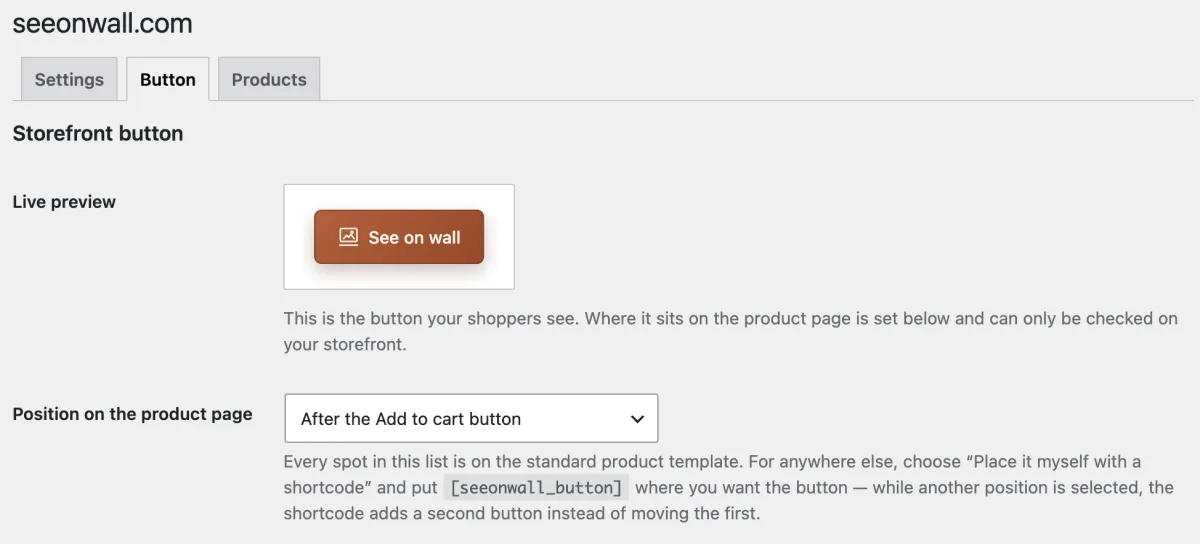
The Button tab with the position After the Add to cart button. The live preview shows how the button looks, not where it sits. Save and check
Click Save changes. Then open a product on your store and look for the button. The live preview on the tab shows how the button looks, but not where it sits.
Need help?
Tell us which product and which step, and we will help. Email support@seeonwall.com.