Open the Button tab
In WordPress, open WooCommerce → seeonwall.com, then the Button tab.
Choose the position
Under Position on the product page, choose where the button goes, for example After the Add to cart button or After the price. To see the button on one of your product pages, click On a product page next to Preview.
Every position in the list is on the standard WooCommerce product template. When your theme changes that template, some positions may not show. Then try another position, or place the button yourself with the block, the Elementor widget or the shortcode.
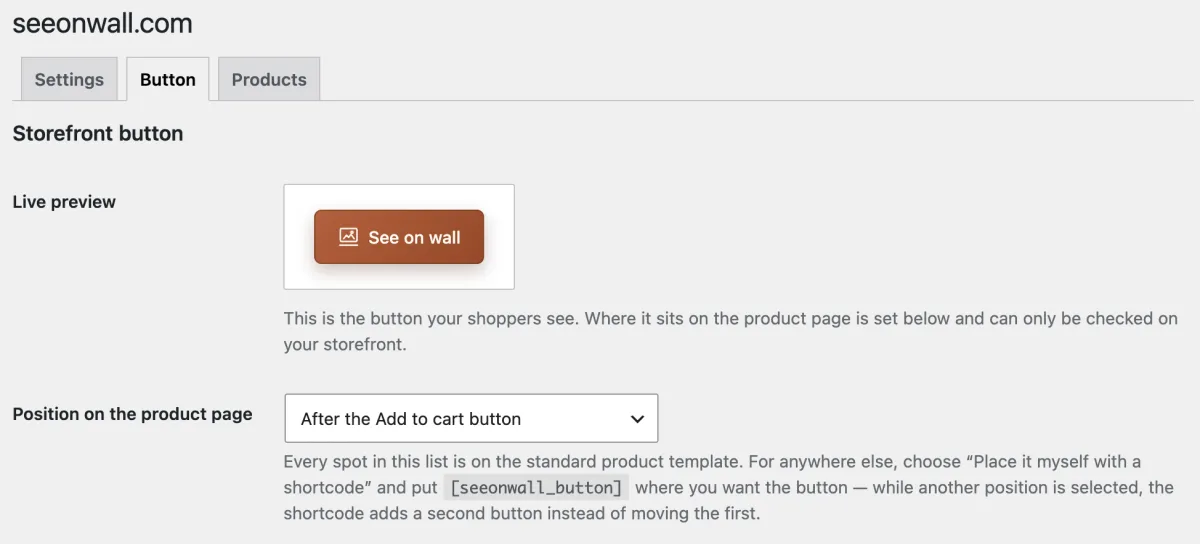
The Button tab with the position After the Add to cart button. The product page on the tab shows the button in that place. Save and check
Click Save changes. Then open a product on your store and look for the button.
Need help?
Tell us which product and which step, and we will help. Email support@seeonwall.com.