
Open the Button tab
In WordPress, open WooCommerce → seeonwall.com, then the Button tab.
Choose the style
Under Button style, choose Default button style or Match my Add to cart button. Match copies the font, size, corners and spacing of your theme's button. To copy its colours too, select Also match its colors.

Button style set to Default button style. Choose Match my Add to cart button to copy your theme's button. Choose the shape and the colours
Under Button shape, choose Solid, Outline, Icon and text, or Icon only. Then set Background color, Text color, Border color and Corner radius (px). Leave a field empty to keep the default look.
Icon only shows the mark alone. The button text then shows as the tooltip and is read by screen readers.
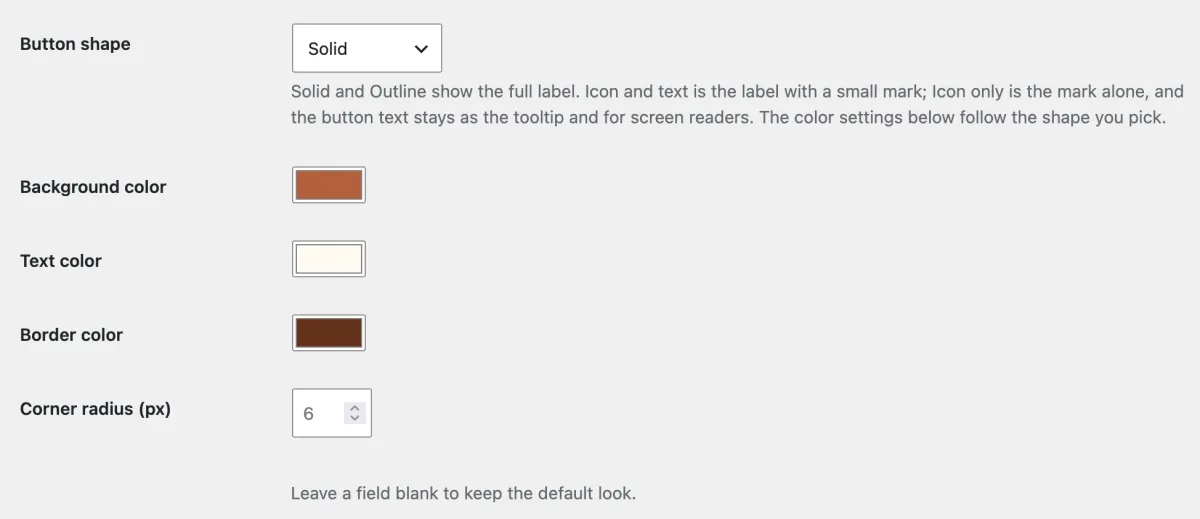
Button shape Solid, with its colours and corner radius. A field left blank keeps the default look. Change the text
Click Button text — all languages to open the section. Enter your text for each language that you need. Shoppers see the button in the language of your store page.
A field that you leave empty keeps the text shown in it.
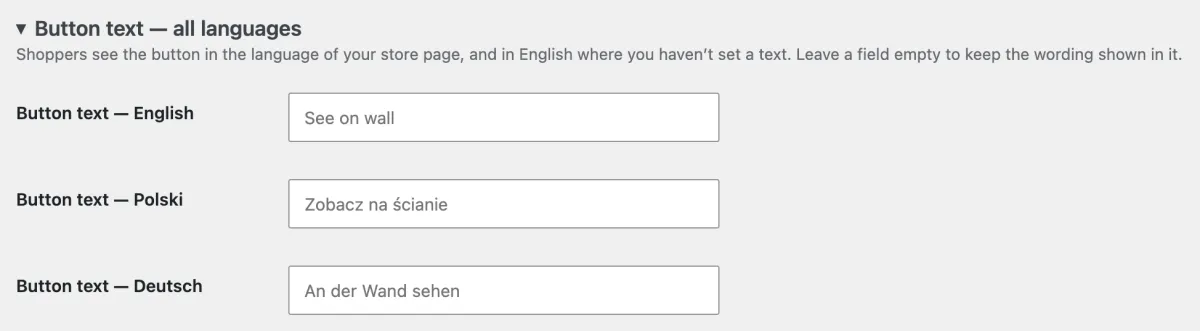
Button text — all languages, with one field per language. The grey text in a field is the wording that it keeps when you leave it empty. Save and check
Click Save changes. Then open a product on your store and look at the button.
Need help?
Tell us which product and which step, and we will help. Email support@seeonwall.com.