
Find the reason
In WordPress, open WooCommerce → seeonwall.com, then the Products tab. For a product with no button, the Status column shows the reason: Not connected, Hidden, Not enabled or No image. Move the pointer over its row for the fix.
In the product editor, the seeonwall.com tab under Product data shows the same reason at the top.
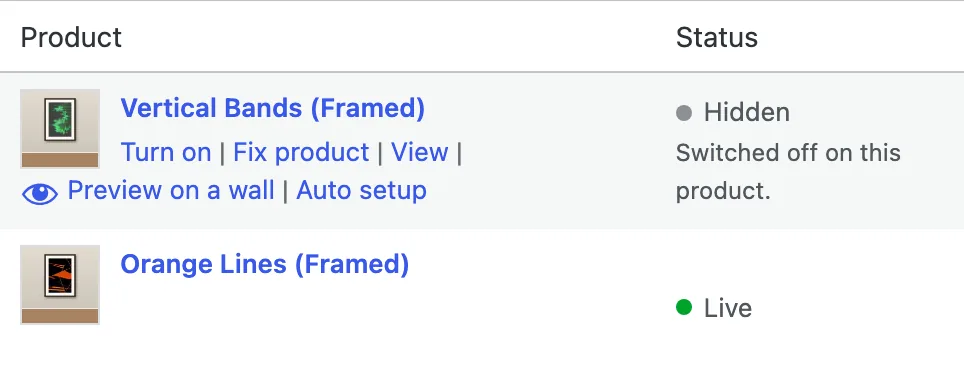
The Status column of the Products tab. Under the pointer, the row shows its fixes, such as Turn on.
The reason and its fix
- Not connected: the store is not connected to seeonwall.com.On the Settings tab, click Connect to seeonwall.com.
- Live, but no button on the product page: the product has no Print sizes list and no variations named by size, and the plugin cannot read a size field on the page.Give the product a print size →
- No image: there is no image to preview.Choose the poster image →
- Hidden: the button is switched off for this product.Move the pointer over the row and click Turn on. In the Button column, set the product to Follow the store setting or Always show.
- Not enabled: the store shows the button only on products where it is switched on.Move the pointer over the row and click Turn on. For many products, open Bulk actions and choose Turn the wall preview on. To show it on every product with a size, set Show the button on, on the Settings tab, to All products where a size can be found.
- The status is Live, but the product page has no button.Your theme may not show the position that you chose. On the Button tab, choose another Position on the product page. When your theme builds the product page from blocks, add the seeonwall.com button block to the template in the Site Editor. With Elementor, add the seeonwall.com button widget. Or choose Place it myself with a shortcode and put [seeonwall_button] where you want the button.
- The status is Live and the position is right, but there is no button. For example, your store moved to another domain.Check the allowed domains →
Need help?
Tell us which product and which step, and we will help. Email support@seeonwall.com.