
Choose the unit for sizes without one
In the app, open Products, then the Posters tab. At Sizes without a unit are in, choose Centimetres or Inches. A variant called 30x40 is then read in that unit.
The unit applies to the whole store immediately: the live button reads every variant name without a unit, and every size metafield that holds only a number, in this unit. Sizes that state their own unit do not change. If your sizes are in inches, set this before you scan: 8x10 read as centimetres is a postcard.
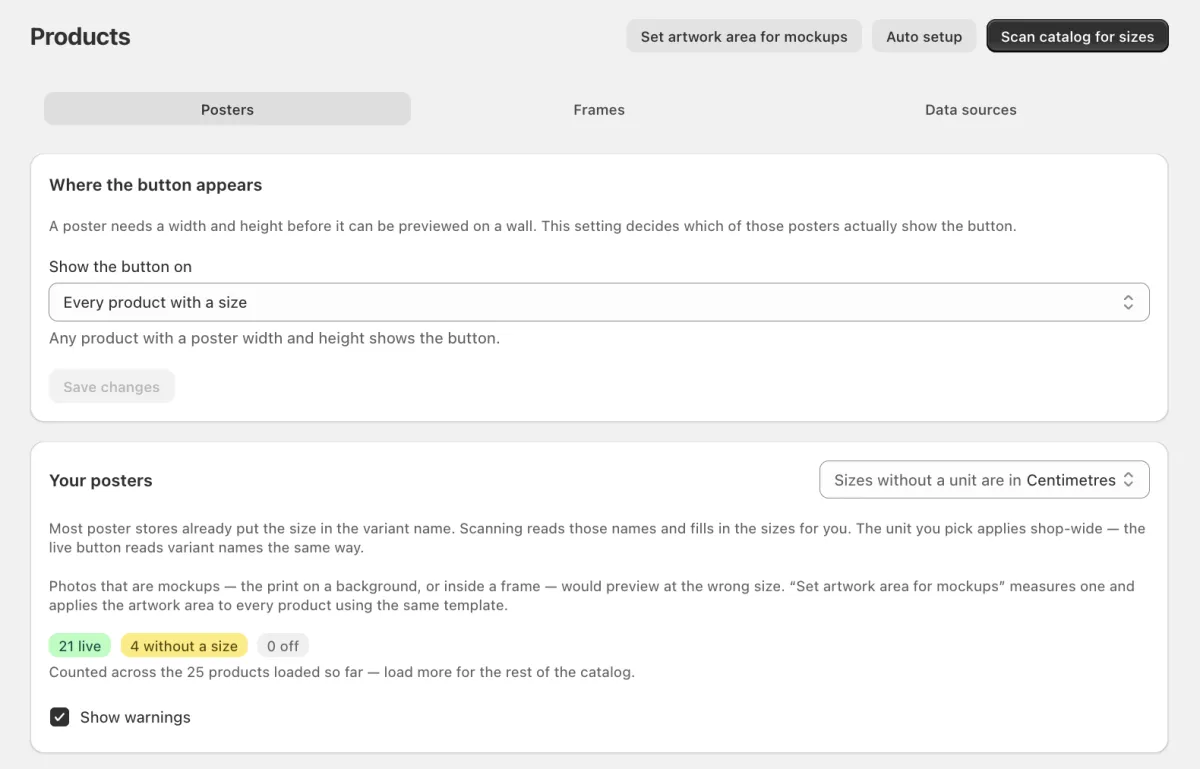
The Products page. Scan catalog for sizes is at the top, and the unit setting is on the Your posters card. Start the scan
Click Scan catalog for sizes at the top of the page. The app reads every variant name. It recognises names like 50x70 cm, A3, 18x24 inches and 21 x 29,7 cm.
Check the sizes it found
The list shows each size it found. A size that looks wrong for a wall poster is marked Looks wrong and is not selected. Clear the sizes that you do not want, then click Apply … sizes.
A variant that already has a size is not changed. A product with no Poster size gets the first size found as its Poster size, and starts to show the button.
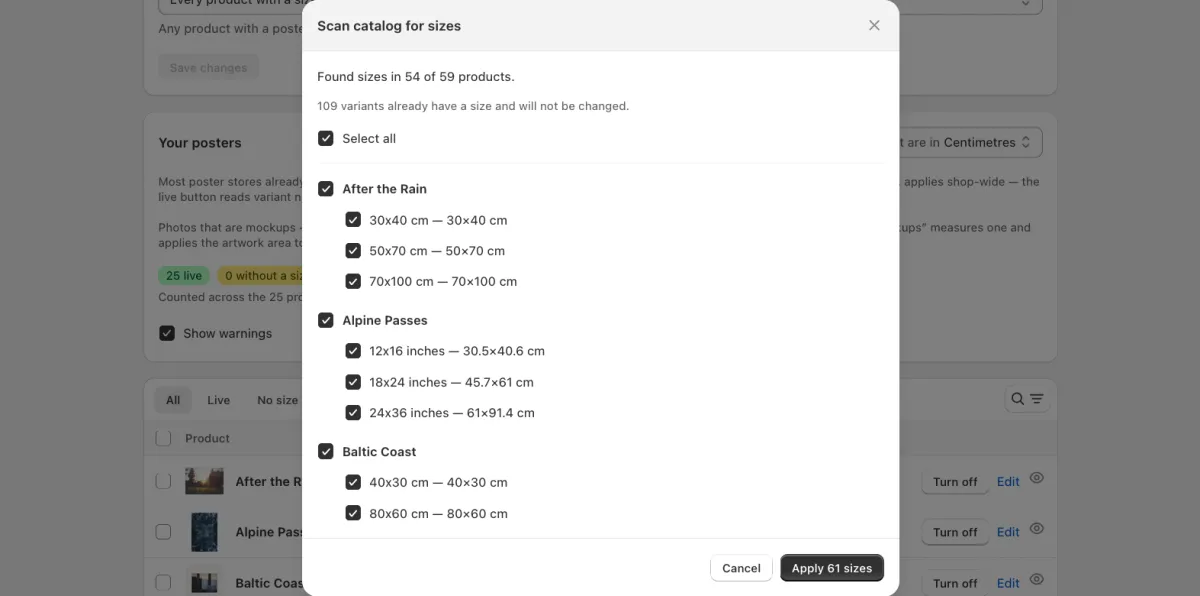
The sizes found, product by product. Each line shows the variant name and the size it is read as: 12x16 inches is 30.5×40.6 cm. Read sizes from the product text
Products with no size in their variant names are counted under the list. Click Read sizes from product text: the app reads the title, the description and the options of these products and lists the sizes it finds, marked From description. Each size shows the text it comes from. Check it, then clear the sizes that you do not want.
A size whose text states no unit is marked Unit not stated and is not selected. Choose cm or in beside it, then select it. A product without a size has the same button in its size editor.
Check the result
The window shows how many variants got a size. Click Close. To find the products that still have no size, choose the No size filter on the Posters tab.
In a large catalog, the scan stops after a number of products and says so. Apply those sizes, then scan again for the rest.

The sizes are saved on 61 variants.
Need help?
Tell us which product and which step, and we will help. Email support@seeonwall.com.