
Open the product
In the app, open Products, then the Posters tab. Find the product and click Edit. On a product with no size, you can also click Set size.
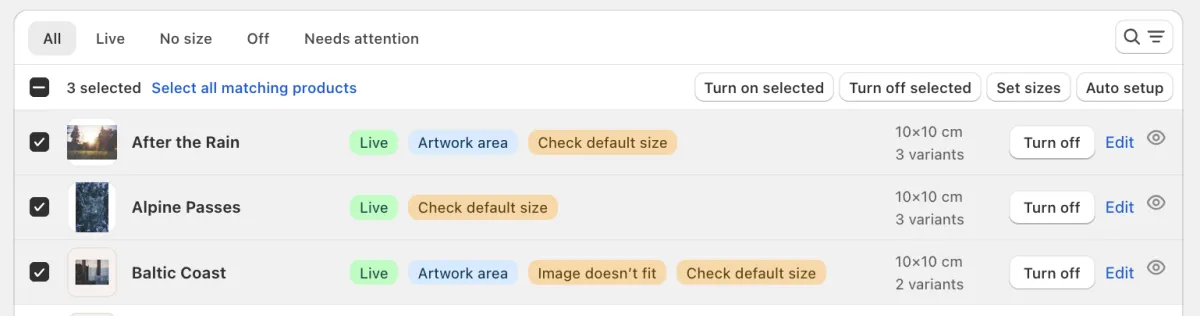
The Posters tab. Edit opens the product. Set the Poster size
Under Poster size, enter the Width and the Height. The button shows only when the product has a Poster size. To remove the size and hide the button, clear both fields.
When the product takes its size from your own metafield, that metafield wins over what you enter here. Change the size in the metafield in Shopify instead.
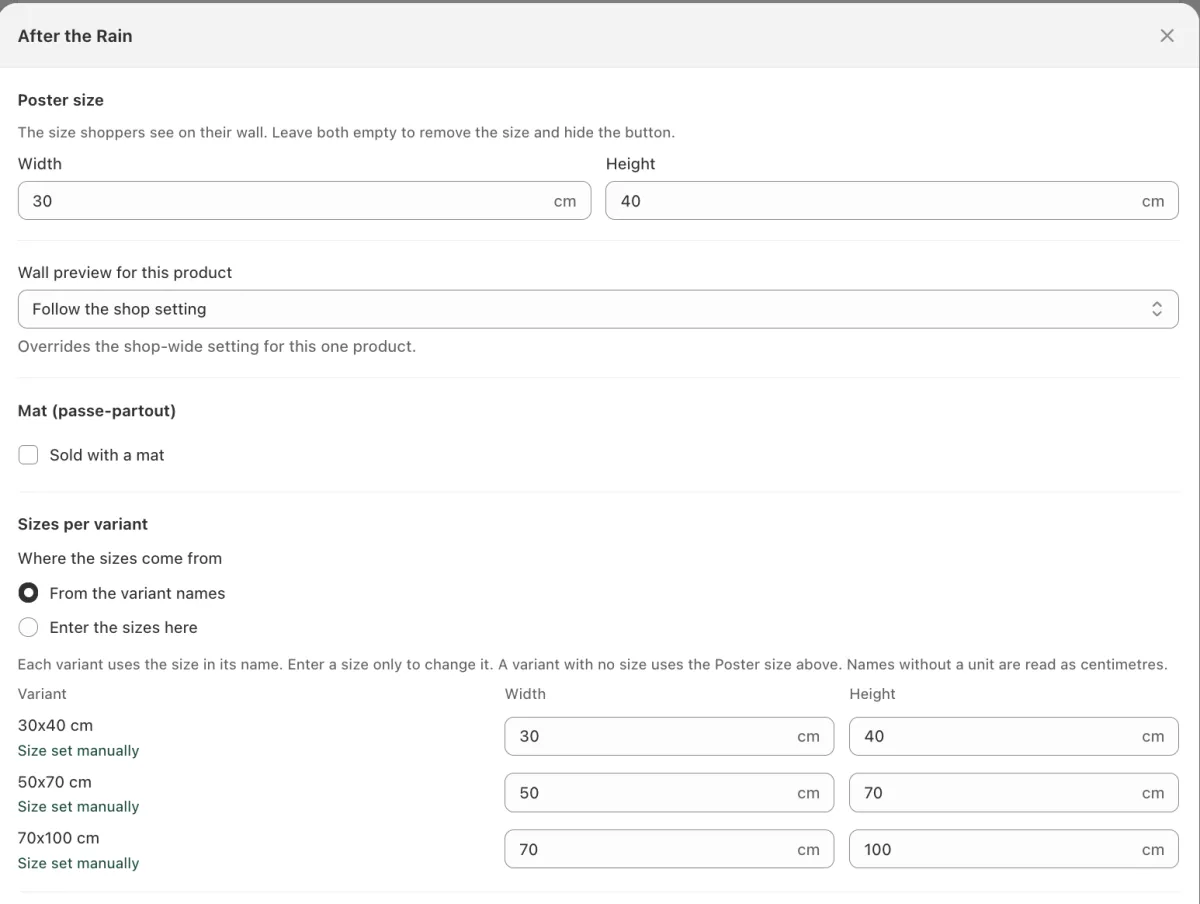
The product editor: the Poster size at the top, the sizes per variant below. Correct a variant
Under Sizes per variant, each variant uses the size in its name. Enter a size only to change one. A variant with no size uses the Poster size. When the app found sizes in the variant names, Use detected sizes fills them in, and fills the Poster size when it is empty.
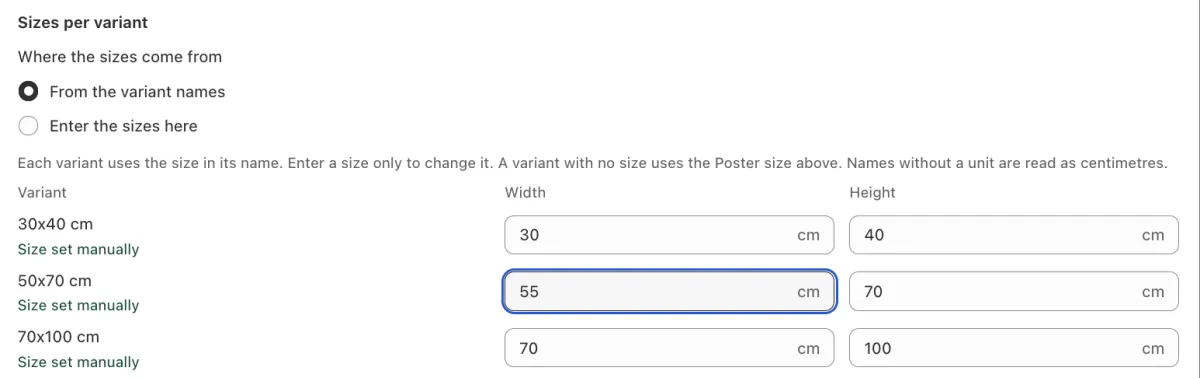
The 50x70 cm variant gets its own width. The other variants keep their sizes. List the sizes yourself
When the variant names do not hold the sizes, choose Enter the sizes here under Where the sizes come from. Under More sizes, click Add size and enter a width and a height for each size. Shoppers can switch between the Poster size and these sizes in the preview.
For a paper format, enter the same name in Width and Height, for example A4.
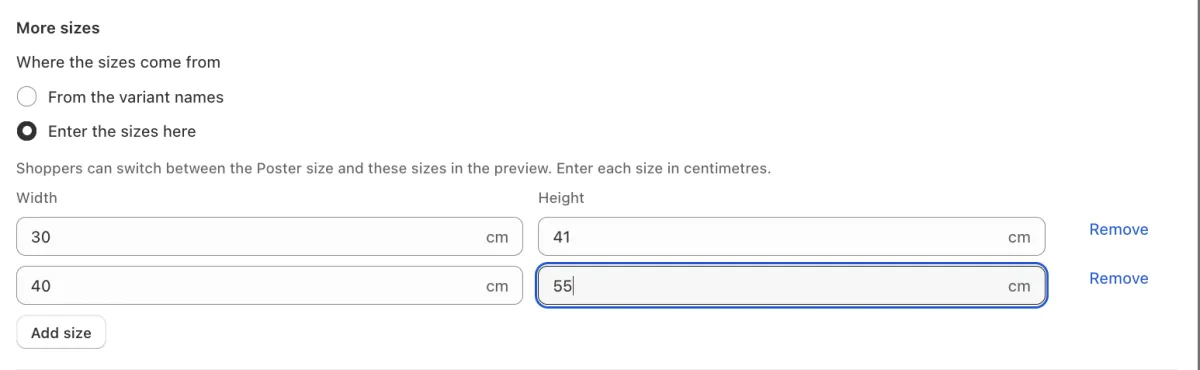
Enter the sizes here, with two sizes. Shoppers can switch between them and the Poster size. If the poster is sold with a mat
Select Sold with a mat, enter the Default mat width and choose the Mat colour. The preview then shows the mat around the artwork, inside the poster size, and shoppers cannot remove it. For a different mat on one size, use the Mat field beside that size.
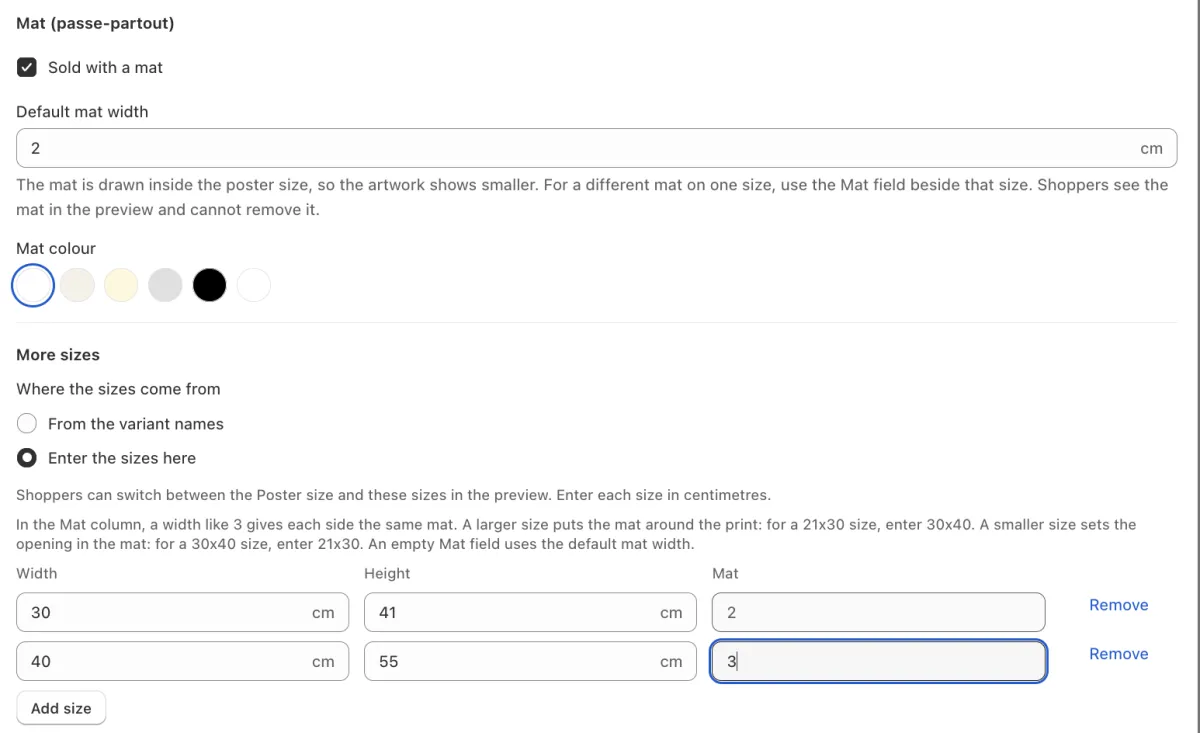
Sold with a mat is selected. Each size in the list has its own Mat field. Save and check
Click Save. Then click Preview to see the product as a shopper does.
Need help?
Tell us which product and which step, and we will help. Email support@seeonwall.com.