
Select the products
In the app, open Products, then the Posters tab. Select the products in the list. Only the products loaded in the list are included.
Open Set sizes
Above the list, click Set sizes.
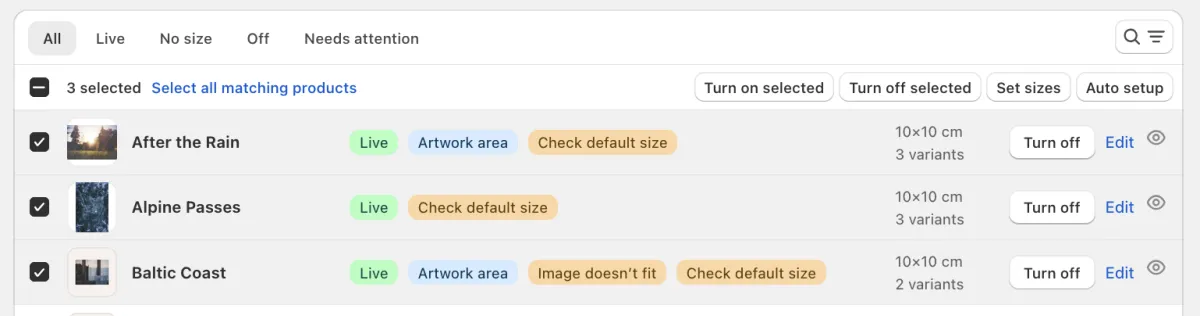
Three products are selected. Set sizes is with the other actions above the list. Choose the change and the sizes
Under Action, choose Add sizes, Replace sizes or Remove the sizes list. For Add and Replace, enter each size under Sizes as a width and a height, and click Add size for the next one.
Shoppers can switch between these sizes in the preview, in place of the sizes in the variant names. A product with no Poster size gets the first size as its Poster size.
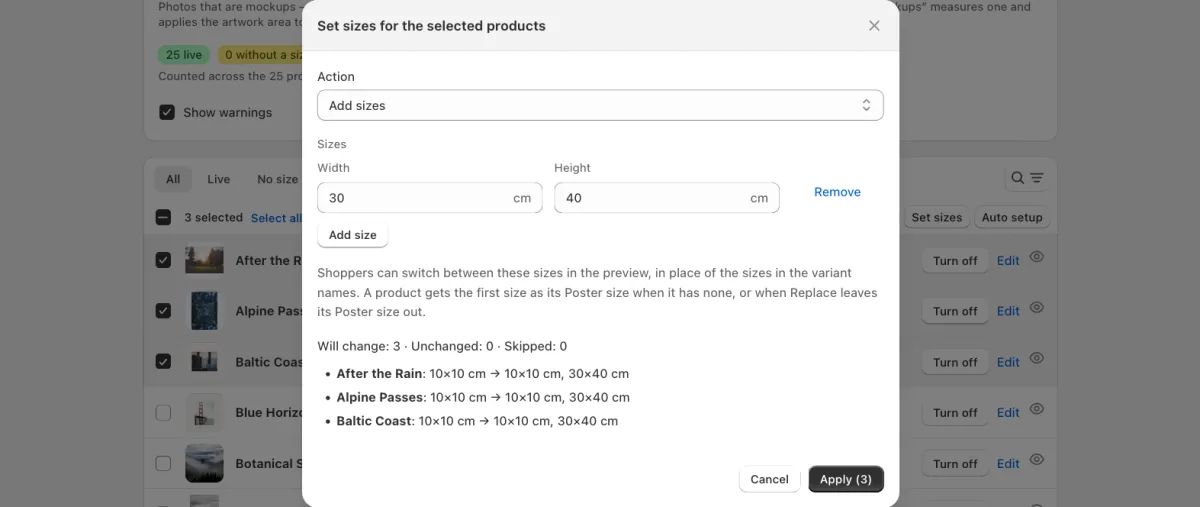
Add sizes with one size, 30×40 cm. Before you apply, the window shows what changes on each product. Check and apply
The window shows how many products will change. Click Apply.
Replace sizes also removes the sizes set on single variants. Products whose Poster size comes from your own metafield are skipped: change that metafield in Shopify.
Need help?
Tell us which product and which step, and we will help. Email support@seeonwall.com.