
Open the product
In the app, open Products, then the Posters tab. Find the product and click Edit. Scroll to “Poster image & artwork area”.
Click the photo
Click the photo that shows the print. Only the product's own images are listed. The app then looks for the artwork in the photo.
Check the artwork area
The box shows the part of the photo that the preview uses as the print. To keep the suggestion, click Use this area. To change it, drag the box or its corners. When the photo is the print with nothing around it, click Use the whole image.
On a framed mockup, the suggestion often follows the outer edge of the frame. Drag the box to the print inside the frame. When the box does not match the poster size, click Match the poster size.
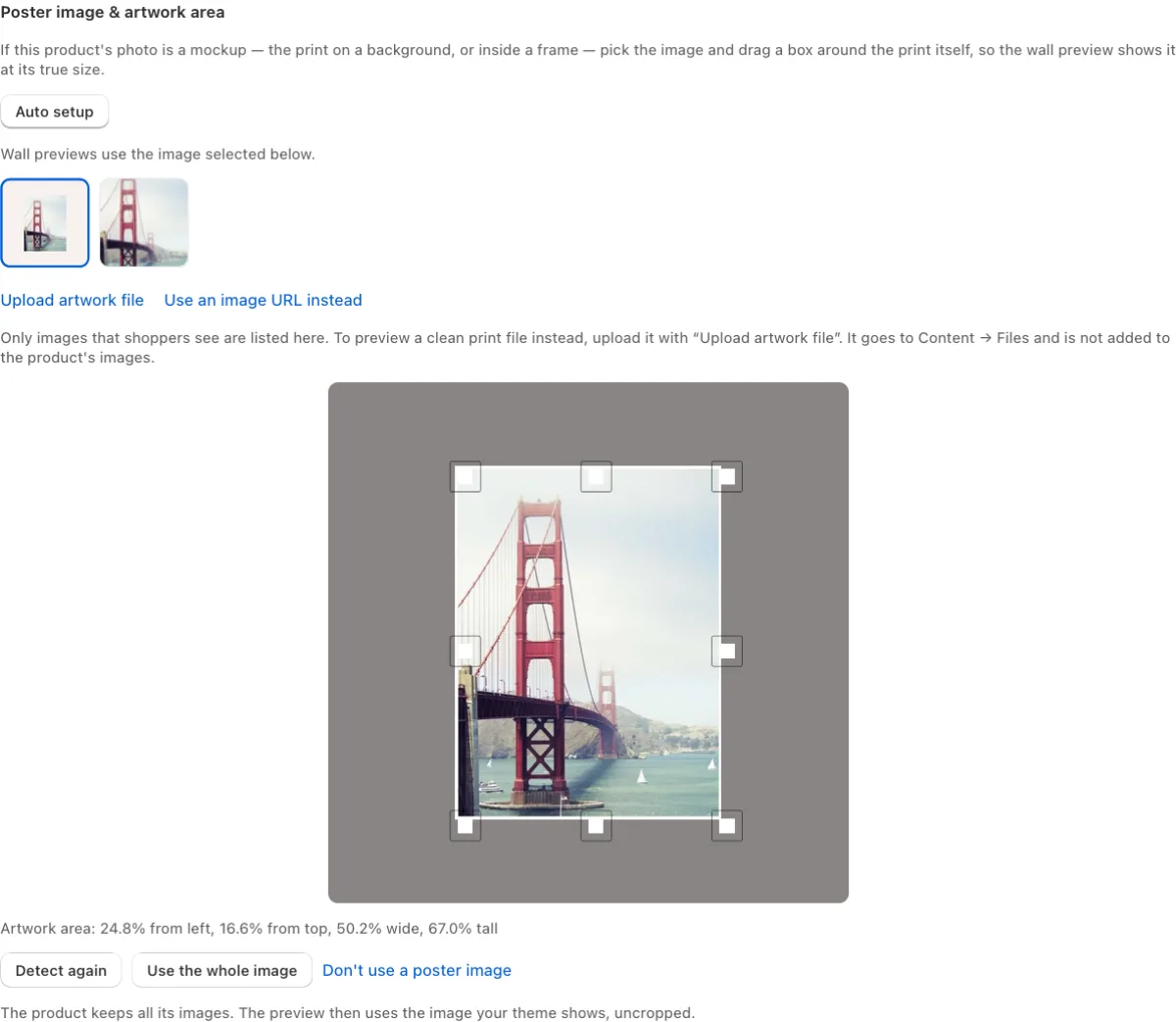
The first photo is a mockup. The box marks the print inside it. Save and check
Click Save. Then click Preview to see the product on a wall.
When other products use the same mockup, the app offers to find them and give them the same artwork area. You can also start this from Set artwork area for mockups on the Products page.
Need help?
Tell us which product and which step, and we will help. Email support@seeonwall.com.