
Open the mockup tool
In the app, open Products and click Set artwork area for mockups at the top of the page.
The app also offers this after you save a product with an artwork area: click Find matching products in the message.
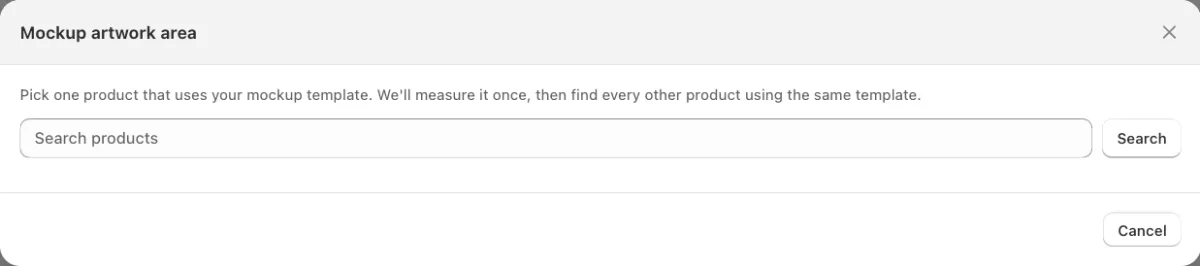
The Mockup artwork area window opens with a product search. Pick one product
Search for a product that uses your mockup template, click Search, then click the product.
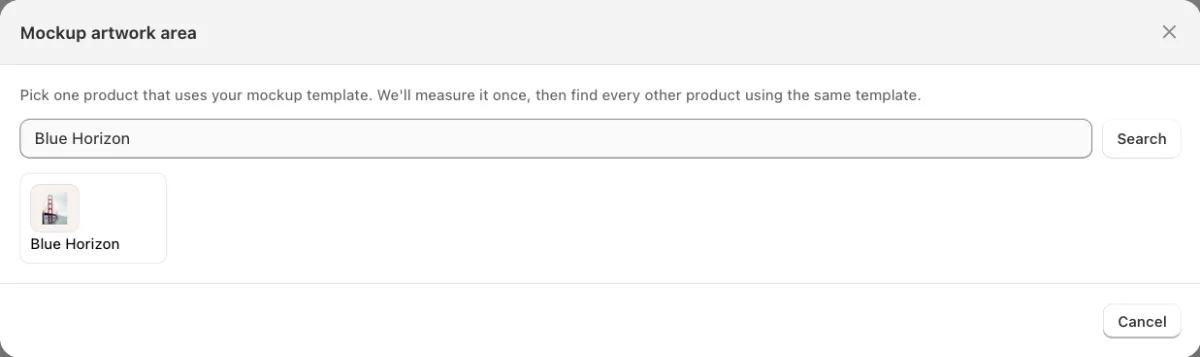
The product found by the search. Mark the print
Click the mockup image. Drag the box around the print itself, then click Find matching products.
When the app cannot recognise the image as a mockup template, it says so. You can then set the artwork area on that product by hand.
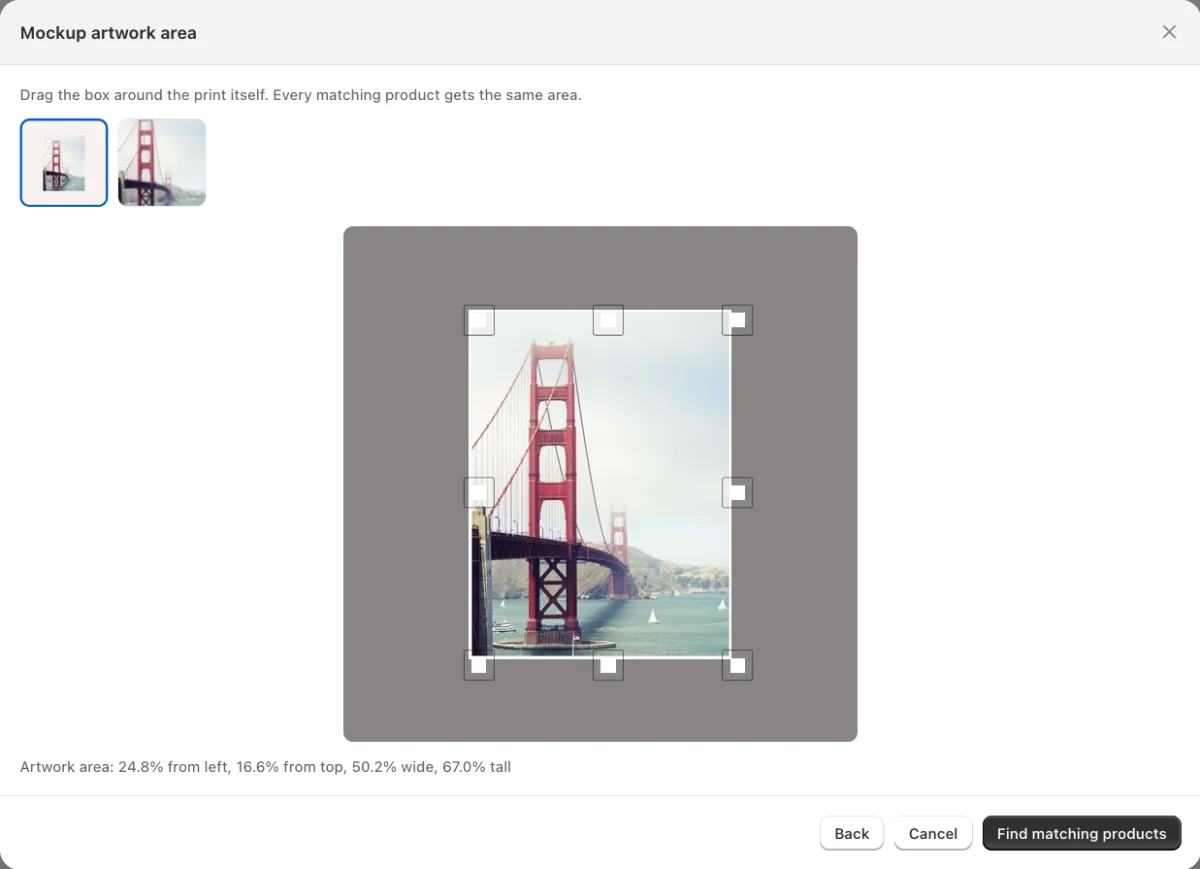
The box marks the print in the mockup. Wait for the check
The app checks your products and counts the ones that use the same template. To stop, click Cancel.

The app checks the products. Check the matching products
The list shows every product that uses the same template. Products with no note are selected. Select or clear products, or use Select all.
A note under a product tells you to check it, for example when it already has an artwork area or its proportions do not match its poster size. Products with your own image metafield or an uploaded artwork file cannot be selected. In a large catalogue, click Continue scanning to check the rest.
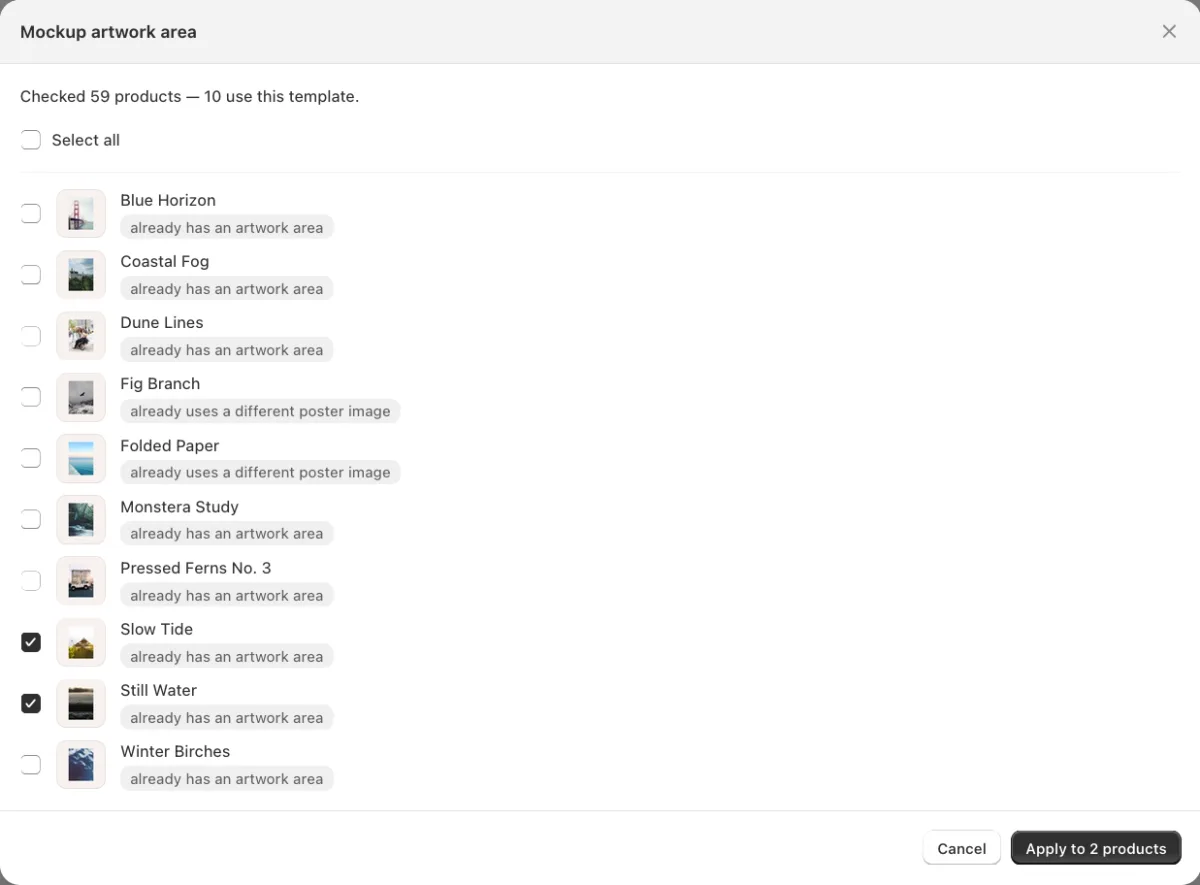
10 products use this template. Two are selected. Apply
Click Apply to write the poster image and the artwork area to the selected products. Do not close the window until it finishes, then click Done. This tool does not use Auto setup analyses.

The artwork area is set on the selected products.
Need help?
Tell us which product and which step, and we will help. Email support@seeonwall.com.