
Open the product
In the app, open Products, then the Posters tab. Find the product and click Edit. Under “Poster image & artwork area”, click Use an image URL instead.
Enter the URL
Paste the address of the image file into Image URL and click Use this URL. The image then shows under the product photos, and you can mark the artwork area as for a product photo.
The address must start with https:// and open the image file itself, not a web page that shows it.
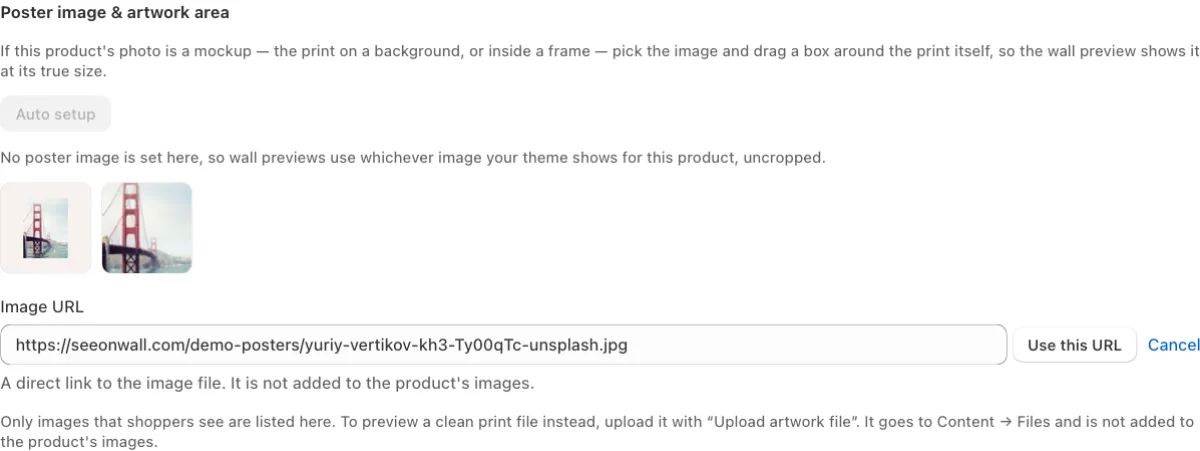
An image address in the Image URL field, ready for Use this URL. Allow the domain
When the domain of the image is not one of your allowed domains, the app shows a warning. Shoppers still see the poster on their wall, but the preview image to download or share is not made. Click Allow to add the domain. You find the list under Storefront → Allowed domains.
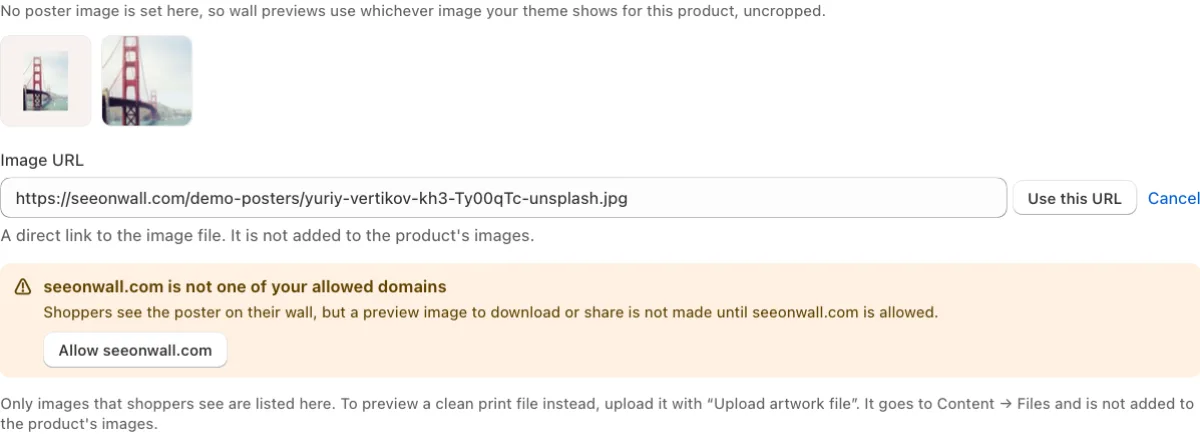
The warning for a domain that is not allowed, with its Allow button. Save
Click Save, then Preview to check the product.
Need help?
Tell us which product and which step, and we will help. Email support@seeonwall.com.