
Open the Data sources tab
In the app, open Products, then the Data sources tab.
Choose the gallery image
Under “Gallery image for the preview”, choose First image, Last image, Image at a set position, or First image with the poster's aspect ratio. For Image at a set position, enter the position in “Image position”. 1 is the first photo.
When a product has fewer photos than the position, its last photo is used. With the aspect-ratio option, a product with no matching photo uses its first photo.
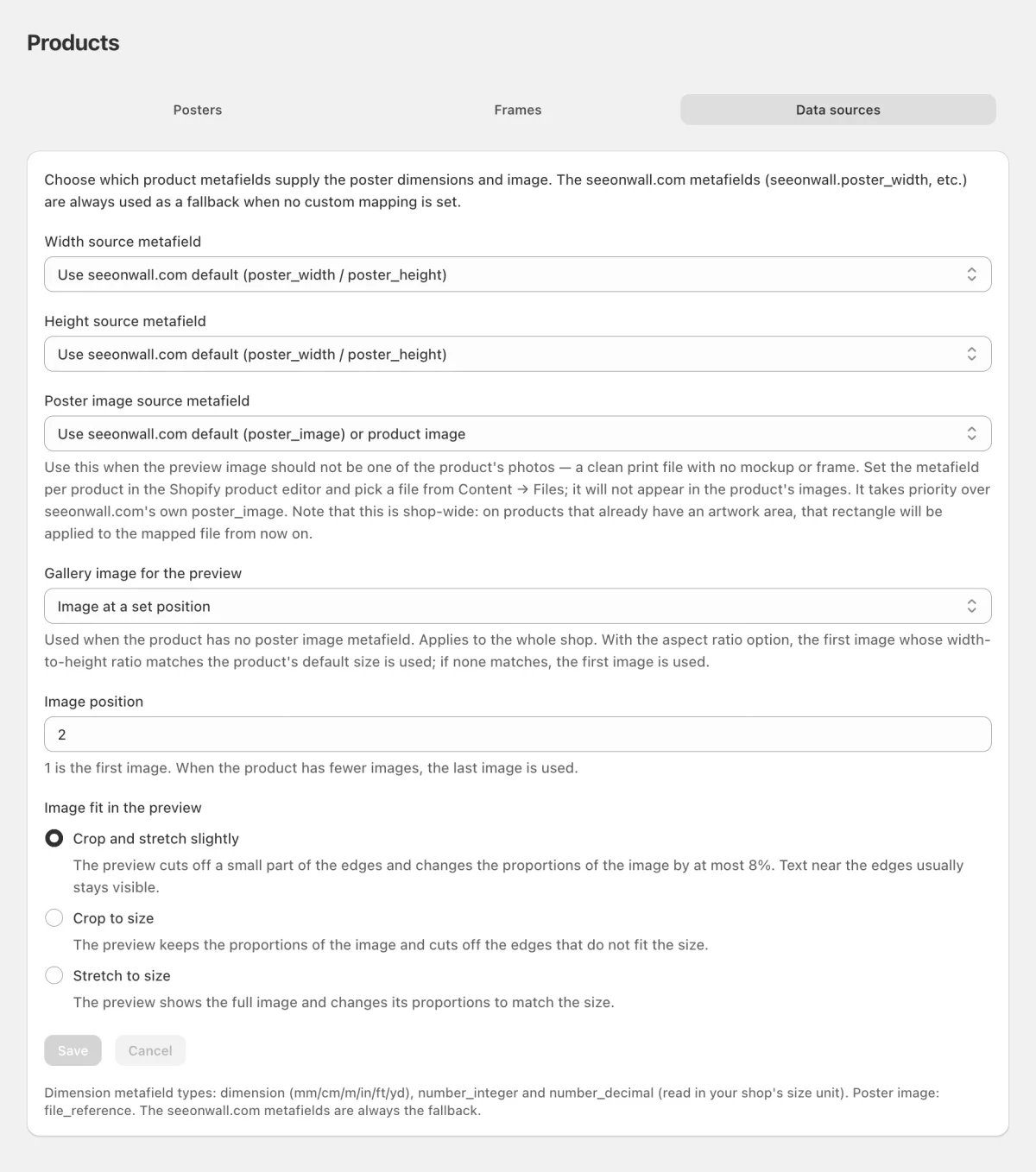
The Data sources tab. Here the preview uses the second photo of each product. Choose how the image fits the print size
Under Image fit in the preview, choose what the preview does when the image and the print size have different proportions. Crop and stretch slightly cuts off a small part of the edges and changes the proportions of the image by at most 8%. Crop to size keeps the proportions of the image, but cuts off the edges that do not fit. Stretch to size shows the full image, but changes its proportions.
The setting matters only when the proportions are different. To prevent that, use an image with the proportions of the print, or mark the artwork area to fit the print size.
Save
Click Save under the settings. The gallery image applies at once to every product with no poster image of its own, and the image fit to every product. To check a product, open it on the Posters tab and click Preview.
Need help?
Tell us which product and which step, and we will help. Email support@seeonwall.com.