
Start Auto setup
In the app, open Products. Click Auto setup at the top of the page to analyse the whole catalogue. To analyse only some products, select them in the list and choose Auto setup in the bulk actions.
Your plan includes a number of analyses each month. The window shows how many are left. A product that shows the same mockup as an analysed product of the job is set up from that result and does not use an analysis.
Start the analysis
The window lists the products to analyse. Products that already have a poster image are not selected. Click Analyse to start.
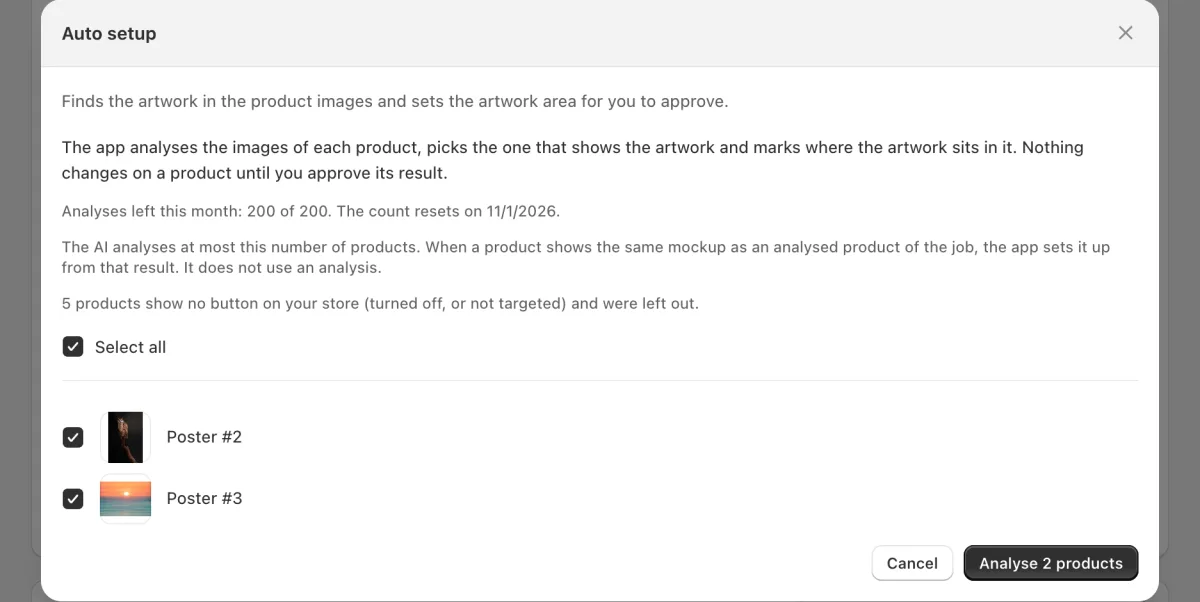
The Auto setup window. It shows the analyses that are left and the products to analyse. Wait for the results
You can close the window: the analysis continues, and the results show when you open Auto setup again. To end it early, click Stop the analysis.
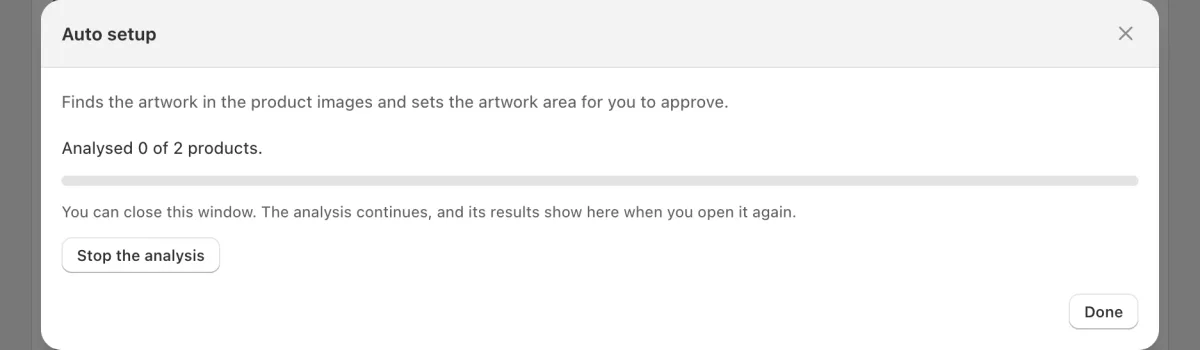
The analysis in progress. Check each result
Each result shows the image that the app chose and the artwork area on it. Click Approve, Reject, or Adjust to move the box yourself. To approve many results at once, use Approve all on this page.
Some products get no result, for example when every image shows the artwork at an angle. Set those by hand: see “Choose a product image and mark the artwork”.
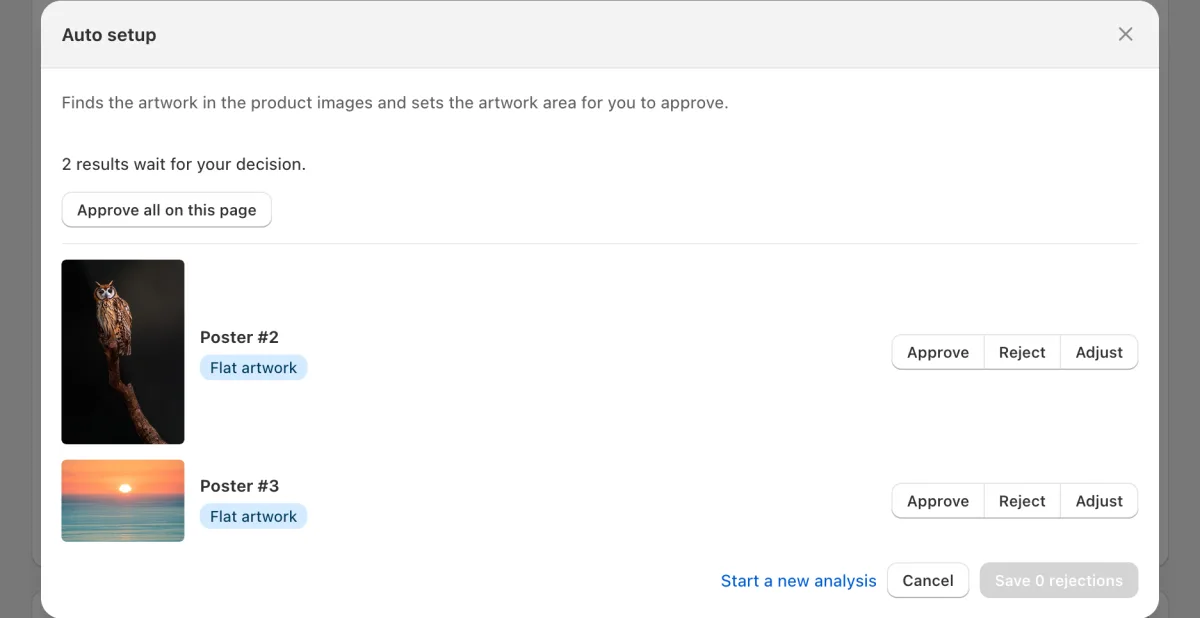
Two results wait for a decision. Each shows the image that the app chose. Apply the approved results
Click Apply to write the approved results to the products. The poster image and the artwork area are then set, and the wall preview uses them.
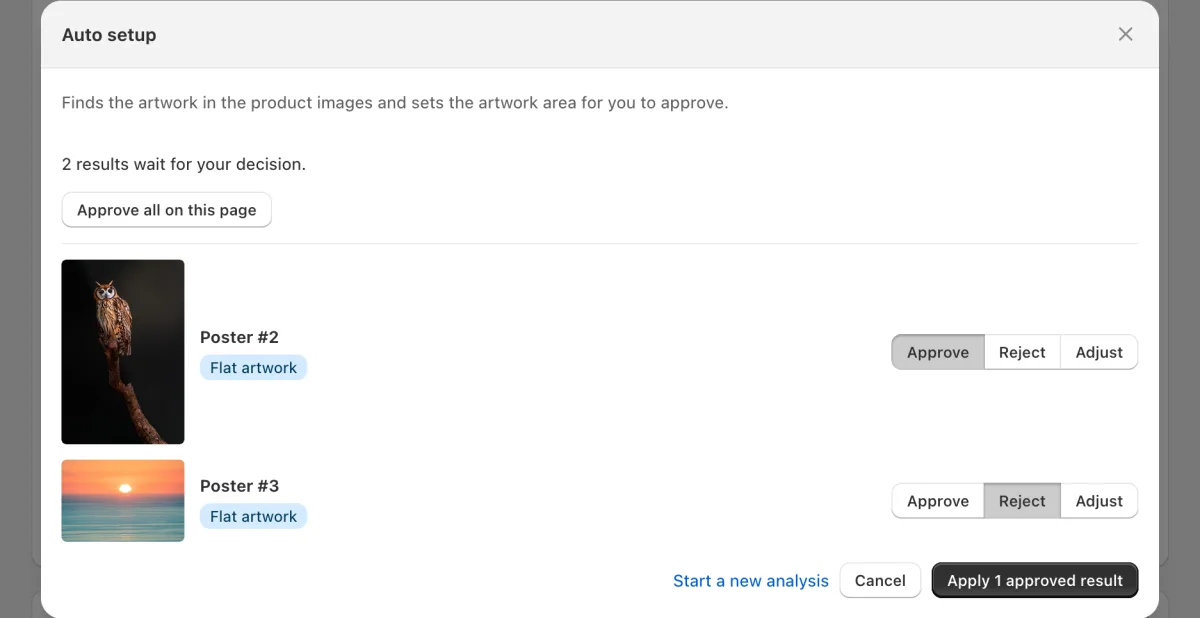
One result is approved and one is rejected. The button applies the approved one. Check the products
The window shows on how many products the poster image is now set. Click Done. To check a product, open it on the Posters tab and click Preview.
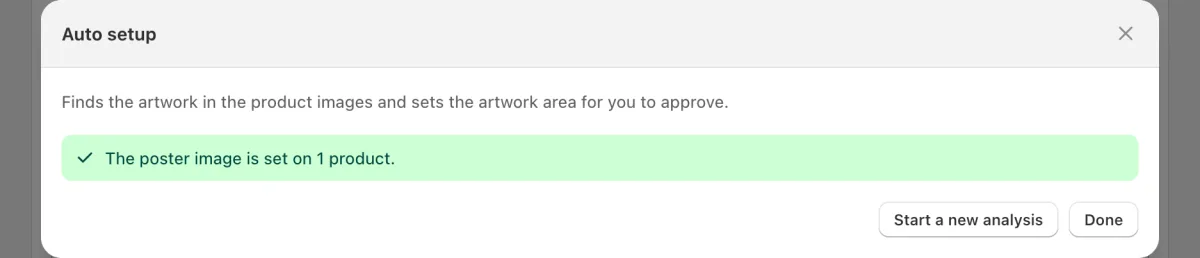
The poster image is set on the approved product.
Need help?
Tell us which product and which step, and we will help. Email support@seeonwall.com.