
Open the setting
In the app, open Storefront and find Fast wall preview.
Choose where the icon shows
Under Storefront placement, select the listings that get the icon: Product-page recommendation rails, Collection/category listings, Search results and Homepage product sections. Each change is saved at once.
Every poster that a shopper previews from a listing counts as a poster view, from the same allowance as the button. The card shows how much is left this hour and this month.
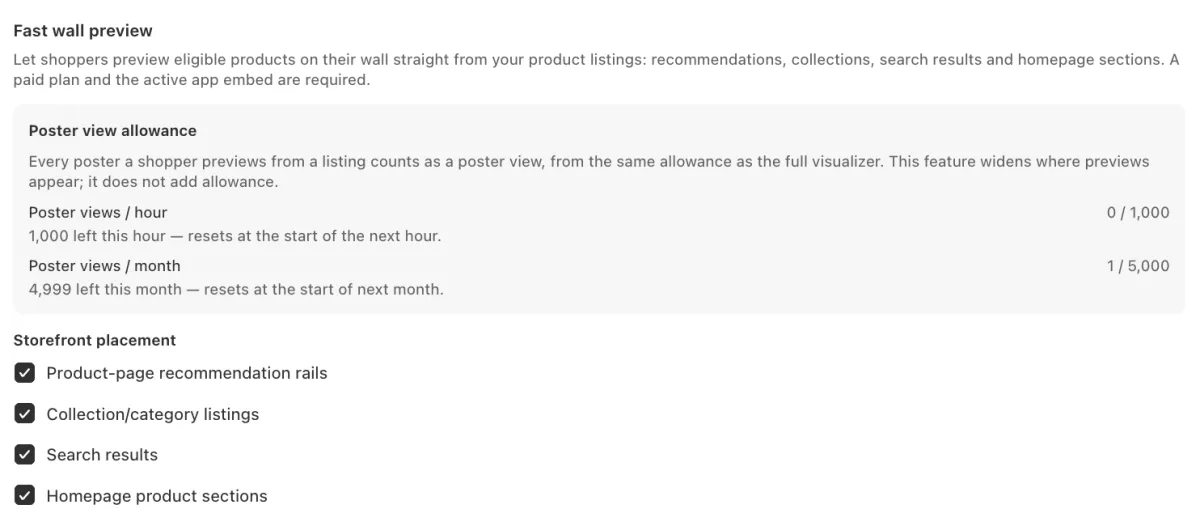
Fast wall preview with all four placements selected, and the poster view allowance above them. Move the icon on the card
In the theme editor, open App embeds, then seeonwall.com – See on wall. Under Product listing previews, choose the Icon position on product cards, then click Save. Pick a corner that your theme leaves free.
If the icon does not show on collection and search pages, enter a CSS selector that matches one product card of your theme under Product card selector (advanced). Leave it empty on most themes.
Check it on your store
Open a product page on your store and preview the poster on your wall. Then open a collection page: the cards of other posters show the icon.
When the icon does not show
- A shopper does not see the icon on a product card.The icon shows only to a shopper who has already set up their wall on a product page, and only on products that have a size. The app embed must be on, too.
- The placements are off, and the app says that a paid plan is needed.Fast wall preview is part of the Basic, Premium and Ultra plans. On the Free plan the icon does not show on your store.
Need help?
Tell us which product and which step, and we will help. Email support@seeonwall.com.