
Choose the theme
In the app, open Storefront. When the setup steps are hidden, click Show steps. Under Theme setup, “Setting up:” names the theme that the steps change. Usually this is your live theme. To set up another theme, click Change theme and choose it under Theme.
When you set up a theme that is not published, shoppers see the changes only after you publish it.
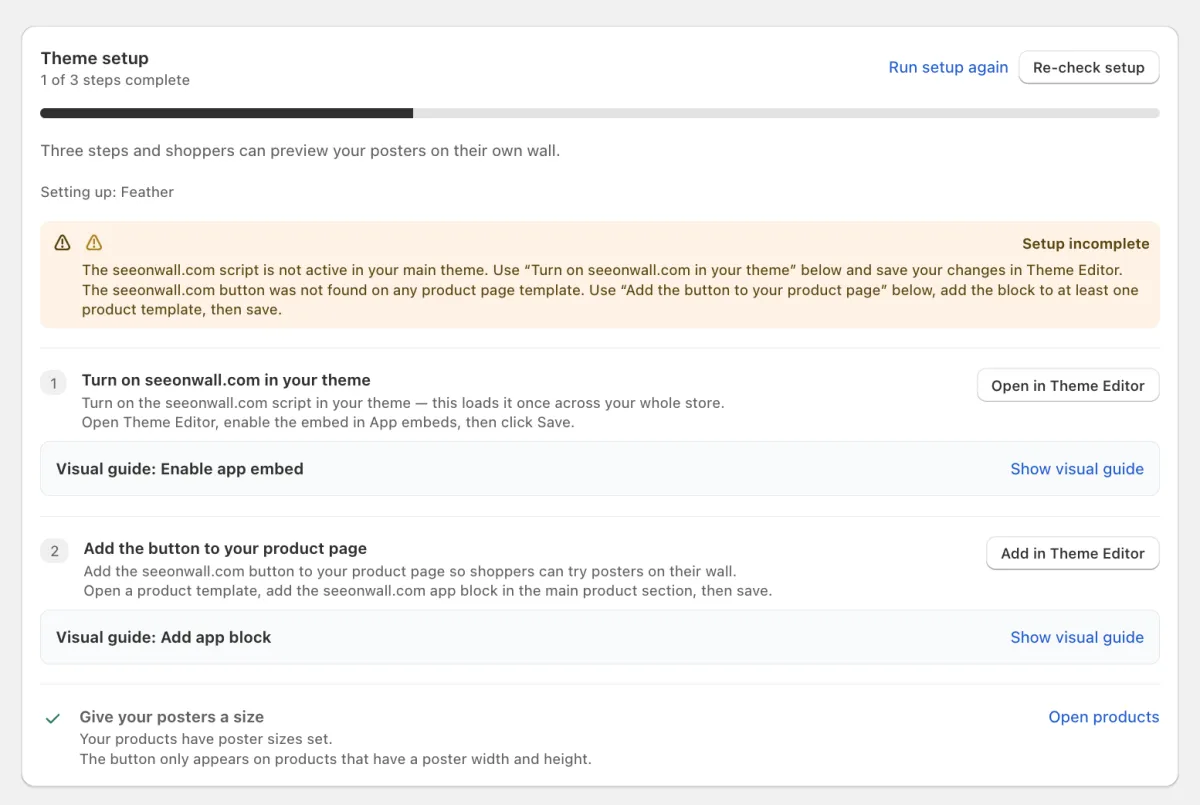
The Theme setup card on the Storefront tab. Step 1 opens App embeds, step 2 adds the button block. Turn on the app embed
Under Turn on seeonwall.com in your theme, click Open in Theme Editor. The theme editor opens at App embeds. Turn on seeonwall.com – See on wall, then click Save.
The app embed loads the seeonwall.com script on your store. Without it, no button shows.
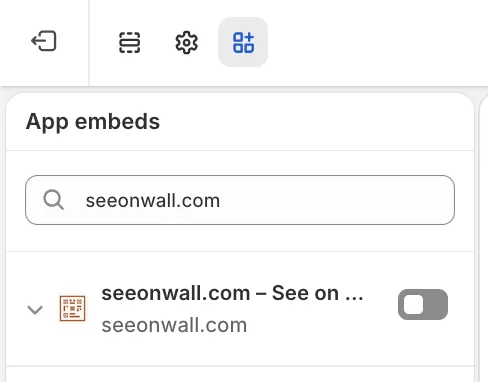
App embeds in the theme editor. Turn on seeonwall.com – See on wall, then click Save. Add the button block
Under Add the button to your product page, click Add in Theme Editor. The theme editor opens a product template with the seeonwall.com – Button block. Drag the block to where you want the button, for example below the Add to cart button, then click Save.
If the block is not there yet, add it to the product section yourself: search for seeonwall.com among the blocks and choose seeonwall.com – Button from the apps. If your store has more than one product template, add the block to each template that sells posters.
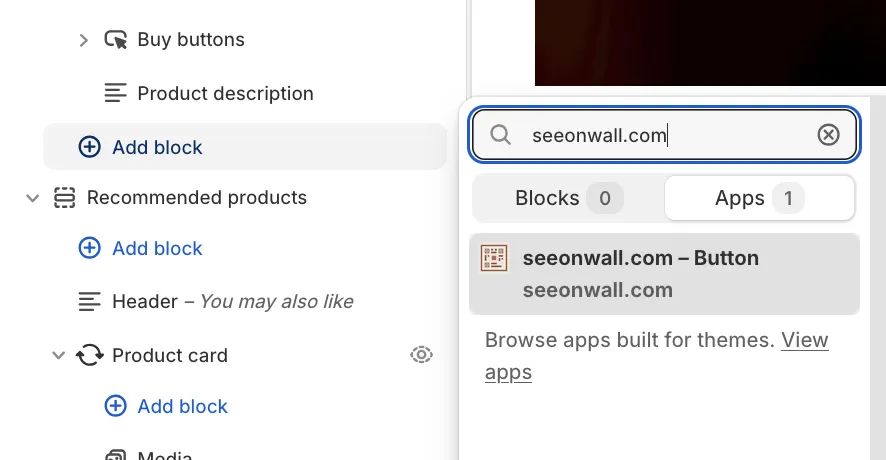
Adding the block by hand: search for seeonwall.com, then choose seeonwall.com – Button. Check the setup
Back in the app, click Re-check setup. Then open a product on your store and look for the button.
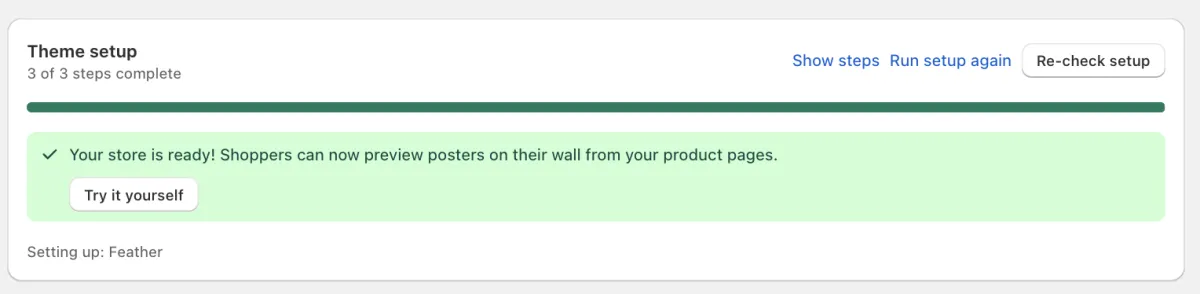
All steps are done. Show steps opens the setup steps again.
Need help?
Tell us which product and which step, and we will help. Email support@seeonwall.com.