
Open the button settings
In the theme editor, open a product template and click the seeonwall.com – Button block. If the app embed adds the button for you, open App embeds and click seeonwall.com – See on wall instead.
Choose the style
Under Button style, choose Default button style or Match my Add to cart button. Match copies the font, size, corners and spacing of your Add to cart button. To copy its colours too, select Also match its colours.
You can also copy your theme's own button classes onto the button: enter them under Button CSS class, for example button button--primary. To find them, inspect the Add to cart button of your theme in the browser. This field is on the button block only.
Choose the shape and the colours
Under Button shape, choose Solid, Outline, Icon and text, or Icon only. Then set Button background colour, Button text colour, Button border colour and Button corner radius.
A shape with no fill does not use the background colour. Icon and text uses only the text colour, for both the mark and the label.
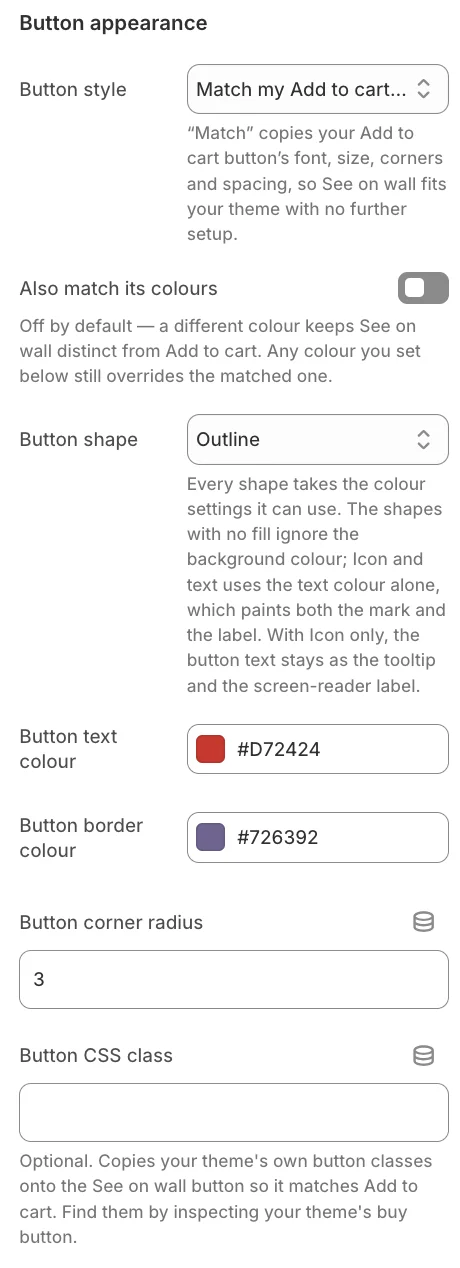
Button appearance on the button block: Match my Add to cart button with the Outline shape. An outline has no fill, so there is no background colour. Change the text
Under Button label, enter your text for each language that you need, for example Button label (English). An empty field keeps the default text.
The text fields are on the button block only. When the app embed adds the button, the button keeps the default text.
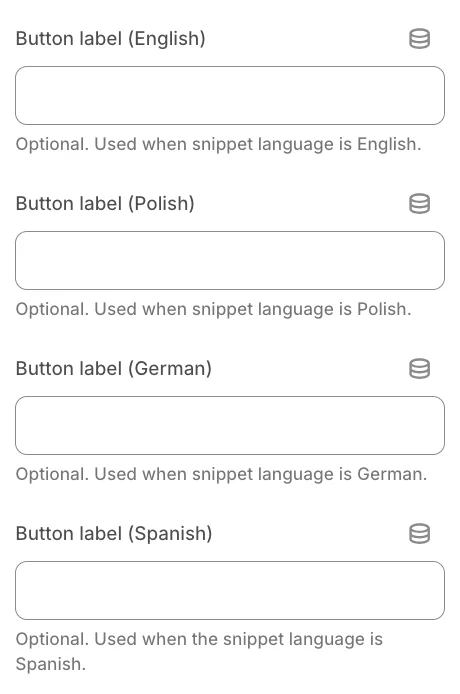
The button labels, one field per language. An empty field keeps the default text. Save and check
Click Save in the theme editor. Then open a product on your store and look at the button.
Need help?
Tell us which product and which step, and we will help. Email support@seeonwall.com.