
Open the list
Log in to the seeonwall.com dashboard, open Shop Settings and find Allowed domains. On the Dashboard page, the step Connect your website (optional) has the link Go to domains, which opens the same list.
Add your website
Enter the domain of your website, such as myshop.com, and click Add. Enter only the hostname: www.myshop.com and myshop.com are two different entries. *.myshop.com allows every subdomain of myshop.com, but not myshop.com itself.
Add the hosts of your poster images too when they are not on your website domain, for example a CDN such as cdn.myshop.com.
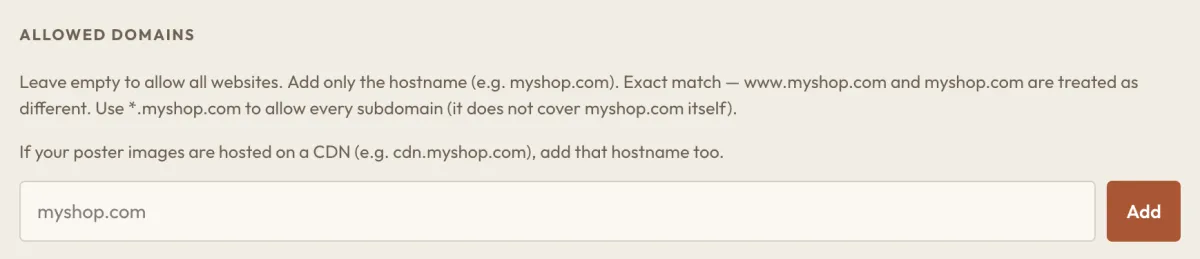
An empty list allows every website. Enter a domain and click Add. Allow the domains that the dashboard has seen
Under Pages seen in the last 30 days, the dashboard lists the pages that opened a preview of your shop, and how many previews were blocked. Click Allow next to each one that is yours. Image hosts seen in the last 30 days lists where your poster images loaded from. Allow those too, or the preview does not show the poster.
Remove a domain
Click × next to it. Previews stop on that domain at once, and poster images from it stop loading. When you remove the last domain, previews work on every website again.
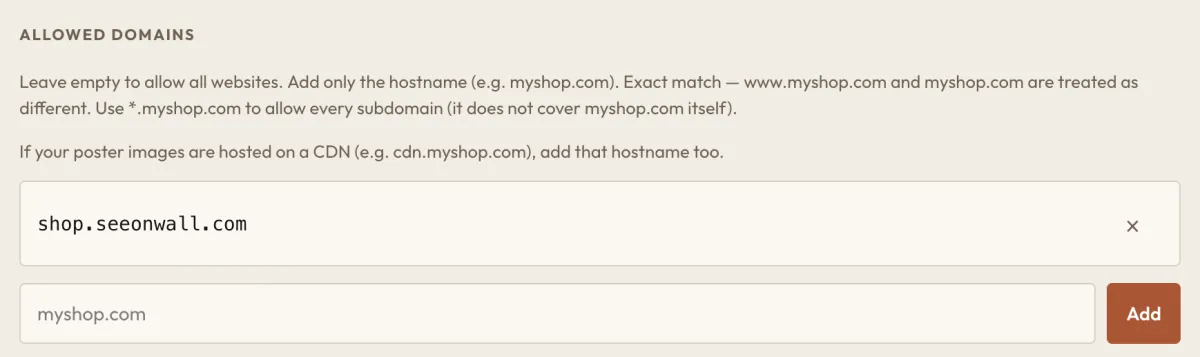
The list with one domain on it. The × next to it removes it.
When something needs your attention
- Notifications shows Your previews are open to any domain.Your list is empty, previews of your shop opened on many websites, and your plan allowance ran out. Add the domains that are yours, so other websites stop using your allowance.
- Your website moved to another domain, and the button is gone.Add the new domain to the list, or click Allow next to it under Pages seen in the last 30 days.
- The preview opens, but the poster does not show.Add the host of your poster images. Image hosts seen in the last 30 days shows it.
Need help?
Tell us which product and which step, and we will help. Email support@seeonwall.com.